IPTV on Enigma2: The Ultimate Proven Setup Guide for Zgemma & Dreambox 2026

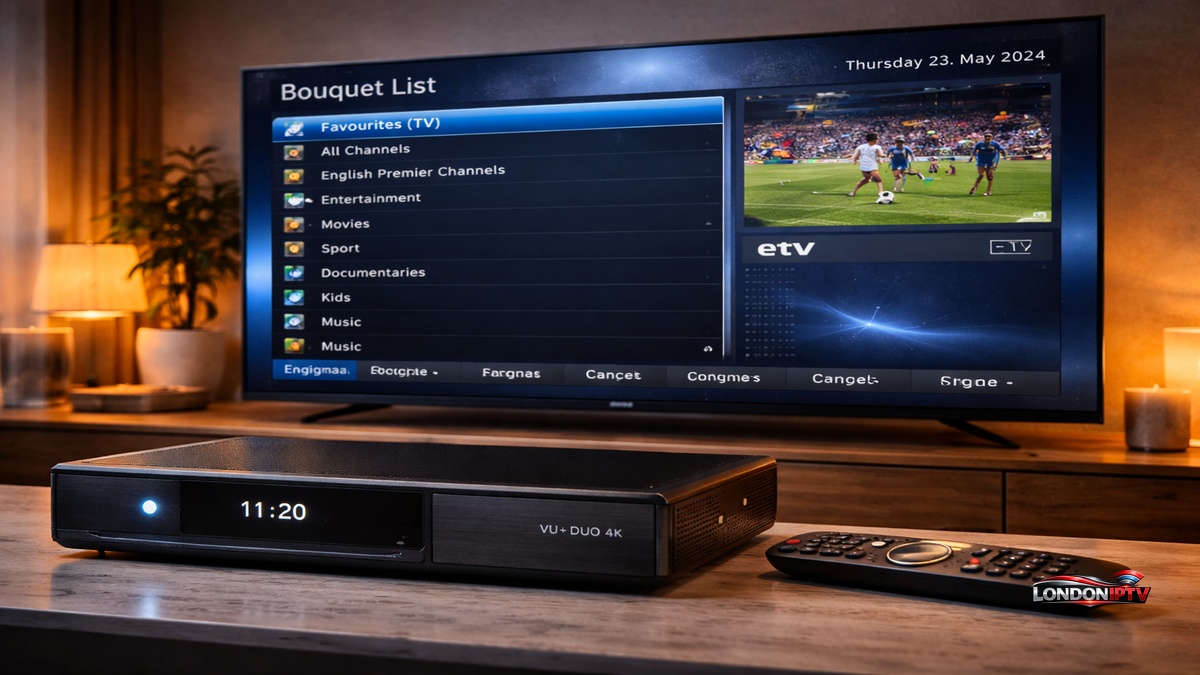
Table of Contents
If you own a Dreambox, Zgemma, or VU+ receiver and want to get IPTV on Enigma2 working properly, this guide is exactly what you need. How to set up IPTV on Enigma2 is one of the more technical processes in the IPTV world but once you understand the plugin system and Bouquet List structure, the whole thing clicks into place fast. Whether you’re using OpenATV, OpenPLi, or any other image, the steps here cover every major method.
Why IPTV on Enigma2 Is the Most Powerful Satellite IPTV Setup Available
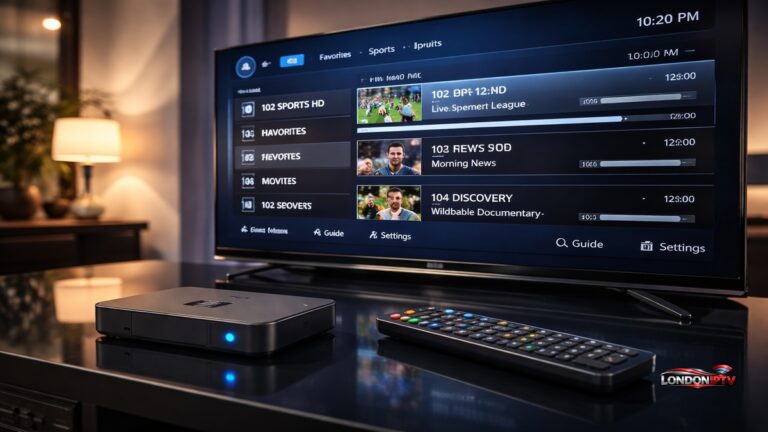
IPTV on Enigma2 gives you something no Android box or smart TV can replicate a full satellite receiver with native IPTV integration baked right into the same interface you use for DVB channels. Your IPTV channels sit inside the same Bouquet List as your satellite channels, navigated with the same remote, in the same EPG. There’s no app switching, no separate interface it all feels like one unified system.
The hardware running all this whether it’s a Dreambox DM900, a Zgemma H9S, or a VU+ Duo runs Linux at its core. That means Telnet Commands, FTP access, and full file system control are always available, giving technically confident users total freedom to configure, automate, and maintain their IPTV M3U playlist Enigma2 setup in ways no closed ecosystem ever could.
What You Need Before You Set Up IPTV on Enigma2
Before jumping into how to set up IPTV on Enigma2, make sure every item on this list is ready:
- An Enigma2 receiver Dreambox, Zgemma, VU+, or any compatible device
- A supported firmware image OpenATV, OpenPLi, or OpenVIX (all fully compatible)
- An active IPTV subscription M3U URL or Xtream Codes login from your provider
- Your provider’s server URL, username, and password
- A wired Ethernet connection IPTV on Enigma2 over WiFi is possible but wired is strongly recommended
- An FTP client on your PC (FileZilla is free and works perfectly) for file transfers
- Optional: a Telnet or SSH client like PuTTY for Telnet Commands based installation methods
One thing people consistently overlook when starting their Zgemma IPTV setup guide for the first time: confirm your receiver’s IP address before you start. You’ll need it for FTP access and Telnet Commands. Go to Menu → Setup → Network → Adapter Settings and note the IP shown you’ll use it throughout the whole process.
Best IPTV Plugin for Enigma2: Full Comparison
The best IPTV plugin for Enigma2 depends on exactly what you want to do live TV only, full VOD, or a complete IPTV M3U playlist Enigma2 bouquet setup. Here’s how the main options compare:
| Plugin | Free? | M3U Support | Xtream Codes | VOD/Series | Bouquet Creation | Best For |
|---|---|---|---|---|---|---|
| XStreamity | ✅ | ✅ | ✅ | ✅ | ✅ | VOD + live power users |
| Jedi Maker Xtream | ✅ | ✅ | ✅ | ✅ | ✅ | Full bouquet automation |
| e2m3u2bouquet | ✅ | ✅ | ❌ | ❌ | ✅ | M3U only bouquet setup |
| XCplugin | ✅ | ❌ | ✅ | ✅ | ✅ | Xtream Codes users |
| IPTVPlayer | ✅ | ✅ | ✅ | ✅ | ❌ | App style channel browser |
XStreamity is widely regarded as the best IPTV plugin for Enigma2 for users who want live TV, catch-up, and VOD all in one place with a polished interface. Jedi Maker Xtream is the top pick for anyone who wants their IPTV M3U playlist Enigma2 channels fully integrated into the native Bouquet List alongside satellite channels. XCplugin is the dedicated Xtream Codes solution clean, fast, and built specifically for the Xtream Codes API rather than raw M3U feeds.
How to Set Up IPTV on Enigma2 Using XStreamity
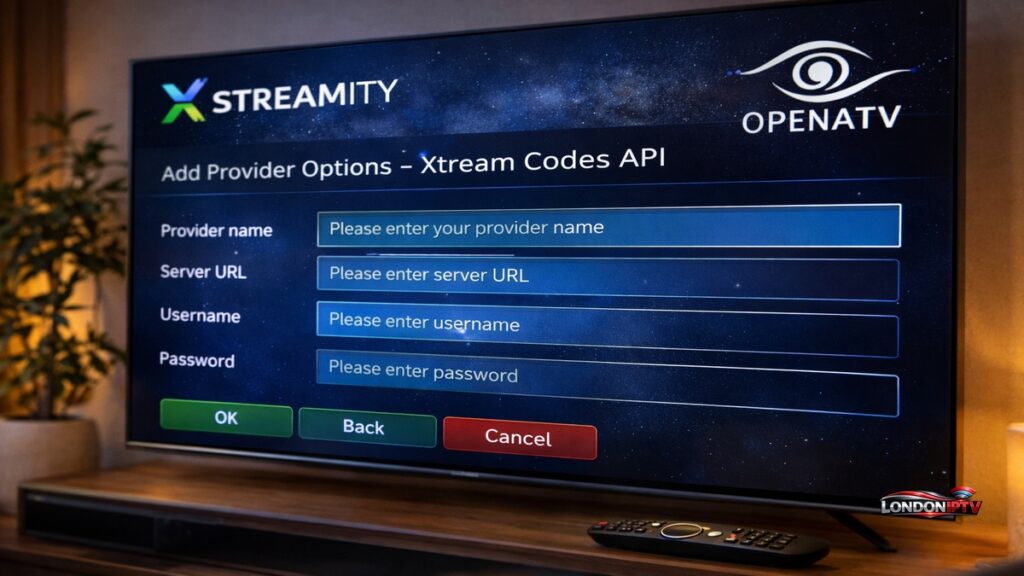
XStreamity is the most feature rich path for IPTV on Enigma2 here’s the full installation process on OpenATV and other standard images:
- Press the Menu button on your remote and navigate to Plugins
- Press the green button to open Download Plugins
- Navigate to Extensions and scroll until you find XStreamity
- Press OK to install confirm any dependency prompts
- Restart the GUI when prompted (press the yellow button or navigate to restart)
- After reboot, press Menu → Plugins → XStreamity to launch
- Select Add Provider from the main menu
- Choose Xtream Codes API or M3U URL depending on your subscription type
- Enter your server URL, username, and password for Xtream Codes or paste your M3U URL
- Select your provider from the list and press OK to load channels
Once loaded, XStreamity gives you separate sections for Live TV, VOD Movies, and Series all browsable with your Enigma2 remote without leaving the plugin. Its definitaly the most Netflix like IPTV experience you can get natively on any Enigma2 device.
How to Set Up IPTV on Enigma2 With Jedi Maker Xtream
Jedi Maker Xtream is the gold standard for Zgemma IPTV setup guide users who want their IPTV channels fully merged into the native Bouquet List meaning they appear right alongside your satellite channels in the standard channel list:
- Install Jedi Maker Xtream from the OpenATV plugin feed via Menu → Plugins → Download Plugins → Extensions
- Restart your GUI after installation completes
- Open Jedi Maker Xtream from the Plugins menu
- Select Add Provider and choose Xtream Codes or M3U source
- Enter your IPTV provider credentials or IPTV M3U playlist Enigma2 URL
- Configure bouquet options you can split channels by category, create separate movie and series bouquets, and set EPG source automatically
- Press Build Bouquets and wait Jedi Maker Xtream creates the full Bouquet List structure and saves it directly into Enigma2
- Restart the GUI your IPTV channels now appear in the main channel list exactly like satellite channels
When the build is done, you can navigate IPTV channels using the standard up/down remote keys through your Bouquet List no separate app needed, no plugin launch required, just pure native Enigma2 channel browsing.
IPTV M3U Playlist Enigma2 Setup
For users who only have an M3U URL and prefer a script based approach, e2 m3u bouquet is the original and most flexible IPTV M3U playlist Enigma2 tool:
- Connect to your Enigma2 box via FTP using FileZilla use the receiver’s IP address, port 21, root credentials
- Upload the
e2m3u2bouquet.pyscript to/usr/bin/on the receiver - Open PuTTY or any SSH client and connect to the receiver’s IP via port 22
- Use Telnet Commands to make the script executable:
chmod 755 /usr/bin/e2m3u2bouquet.py - Run the script with your M3U URL and EPG URL:
python /usr/bin/e2m3u2bouquet.py -m "YOUR_M3U_URL" -e "YOUR_EPG_URL" - The script downloads your IPTV M3U playlist Enigma2 data and automatically creates a full Bouquet List with EPG Importer source files
- Restart the GUI all channels appear in the Bouquet List sorted by category
This method requires comfort with Telnet Commands and FTP, but it produces the cleanest integration of any method channels look completely native, and EPG data maps automatically through EPG Importer.
Zgemma IPTV Setup Guide: Model Specific Notes
Zgemma boxes are among the most popular Enigma2 receivers in the UK and Europe, and the Zgemma IPTV setup guide process has a few model specific considerations worth knowing:
- Zgemma H9S / H9 Twin runs OpenATV 7.x by default all plugins above install cleanly via the plugin feed
- Zgemma H2S older model use OpenATV 6.x images for best plugin compatibility XStreamity works perfectly on this model
- Zgemma Star LC entry level supports all M3U and Xtream Codes plugins but has limited storage keep IPTV M3U playlist Enigma2 bouquets to under 5,000 channels for stable performance
- Zgemma H7S 4K capable handles 4K HEVC IPTV streams natively when stream type is set to 5002 in plugin settings
All Zgemma models benefit from being flashed with the latest OpenATV image before IPTV setup stock firmware on older units can cause plugin installation failures that disappear completely after a clean flash.
Quick Troubleshooting for IPTV on Enigma2
Running into problems? Here are the most reliable fixes:
- Plugin not found in download feed → Check your OpenATV image version older images have outdated plugin feeds update the image or manually add a community plugin feed URL via Plugins → Plugin Browser settings
- Channels loading but black screen → Change stream type from 1 to 4097 or 5002 in XStreamity or Jedi Maker Xtream settings wrong stream type is the most common cause of black screens on Dreambox and Zgemma models
- EPG not showing for IPTV channels → Install EPG Importer from the plugin feed and add your XMLTV URL as a source run a manual import
- e2m3u2bouquet failing via Telnet Commands → Check the Python version on your image some newer OpenATV builds use Python 3 by default replace
pythonwithpython3in the run command - Bouquet List not updating after rebuild → Delete old IPTV bouquet files from
/etc/enigma2/via FTP before re running any bouquet creation tool - XCplugin not connecting → Verify your Xtream Codes server URL includes the correct port number most providers use port 8080 or 25461
Enigma2 devices like Zgemma and Dreambox rely heavily on stable streams and accurate Xtream Codes to perform at their best. Our in depth guide to Xtreme HD IPTV: Xtream Codes & Proven IPTV Streaming walks you through everything you need to know about using Xtream Codes on your receiver and our Best IPTV UK 2026 roundup will help you find a provider with the reliability these devices demand.
Performance Tips for IPTV on Enigma2 Daily Use
Once your how to set up IPTV on Enigma2 process is complete, these habits keep everything running at its best:
- Always use Ethernet all Enigma2 hardware performs significantly better on a wired connection WiFi adapters on Dreambox and Zgemma units add latency that causes intermittent freezing on live sports streams
- Schedule bouquet rebuilds nightly Jedi Maker Xtream and e2m3u2bouquet both support automated scheduled runs set them to rebuild your Bouquet List at 3–4 AM to pick up any channel additions or URL changes from your provider
- Use stream type 5002 for 4K if your receiver supports 4K and your provider offers UHD streams, setting stream type to 5002 in your plugin settings enables proper HEVC hardware decoding
- Keep OpenATV updated OpenATV releases regular stability patches flashing the latest nightly or stable build every few months keeps plugin compatibility current
- Use XCplugin for VOD, Jedi for live combining XCplugin for on demand content with Jedi Maker Xtream for live TV gives you the cleanest split between a native Bouquet List for channels and an app style browser for movies
- Back up your bouquet files after building your perfect Bouquet List, FTP into
/etc/enigma2/and download alluserbouquet.*.tvfiles if anything goes wrong, you can restore in seconds without rebuilding from scratch
IPTV on Enigma2 is the most powerful and deeply integrated IPTV setup you can build on any hardware platform period. Whether you’re running a Dreambox flagship, a budget Zgemma, or a VU+ mid ranger on OpenATV, the combination of XStreamity, Jedi Maker Xtream, and e2m3u2bouquet covers every use case from casual live TV to a complete 10,000 channel bouquet system.