IPTV on LG Smart TV: Setup Guide to Watch Live TV 2026

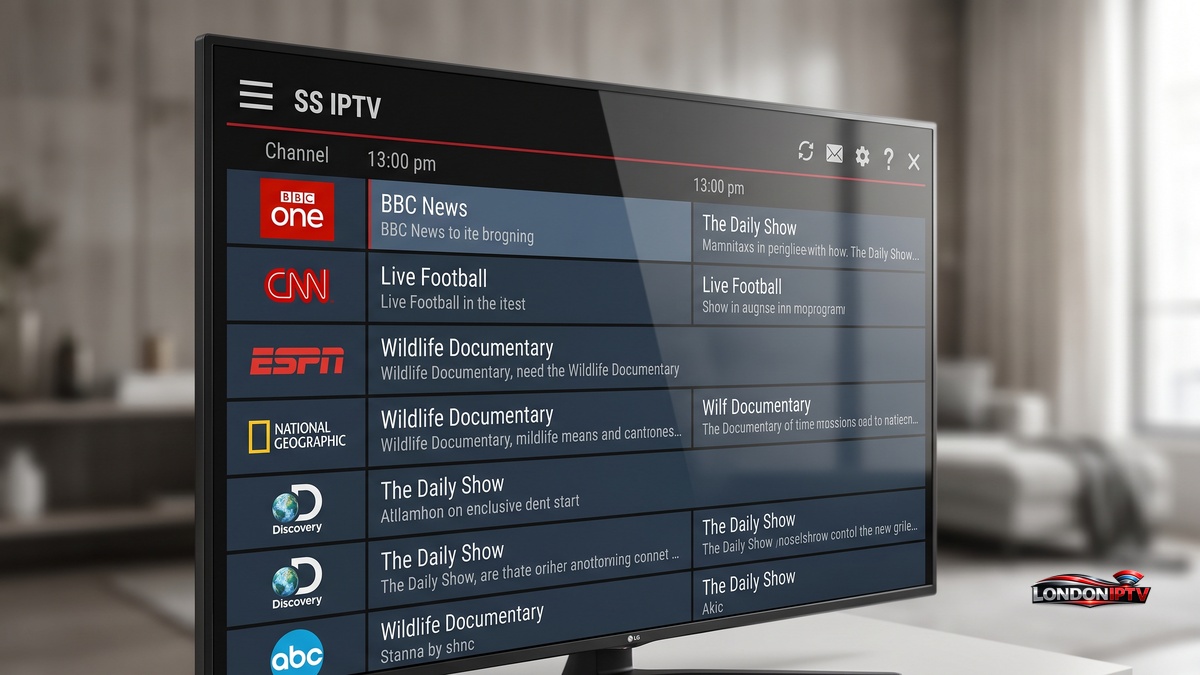
Table of Contents
If you want to watch IPTV on an LG Smart TV, you’re in exactly the right place. Watching IPTV on an LG TV has never been easier. LG’s webOS platform handles app installation smoothly, and the whole process can have you streaming live channels in under ten minutes from now.
Why IPTV on LG Smart TV Is the Smartest Streaming Move You’ll Make
IPTV on an LG Smart TV sits in the sweet spot between power and ease of use. LG’s webOS operating system is purpose built for smart apps, so IPTV players load fast, run without stutter, and slot neatly onto your home screen. The built in LG ThinQ AI takes things further, letting you use voice commands to open your IPTV app or search for channels without touching a single button.
The Magic Remote is another reason LG stands out for IPTV users. Its gyroscope powered pointer lets you click around channel lists exactly like a mouse, with no clunky D pad scrolling through hundreds of channels. Apps like OttPlayer and SS IPTV suit this style of navigation especially well, which makes the whole experience feel genuinely premium.
What You Need Before You Set Up IPTV on LG
Before you think about the setup on your LG TV, make sure these basics are in order:
- An LG Smart TV running webOS 3.0 or higher (2016 models and newer)
- A valid IPTV subscription, either an M3U URL or an Xtream Codes login from your provider
- A stable internet connection, at least 10 Mbps for HD streams and 25 Mbps for 4K
- An LG account linked to your TV for LG Content Store access
- Your provider’s server URL, username and password ready to paste
- Optional but recommended: a wired Ethernet cable for zero buffering performance
Here’s something people often skip on a first attempt: check your webOS firmware version before you install anything. Outdated firmware is the number one cause of app crashes and login errors during setup, so update it first and save yourself a lot of frustration.
Best Apps to Watch IPTV on LG Smart TV
Picking the right app is genuinely half the battle here. This is how the top options compare:
| App | Free? | M3U Support | Xtream Codes | EPG Support | Magic Remote Friendly | Best For |
|---|---|---|---|---|---|---|
| IBO Player | No | Yes | Yes | Yes | Excellent | All round use |
| Net IPTV | Yes | Yes | No | Yes | Good | Simple M3U setups |
| OttPlayer | Yes | Yes | No | Yes | Good | Multi playlist users |
| Smart IPTV | $5.49 one time | Yes | No | Yes | Great | MAC based setups |
| IPTV Smarters | Yes | Yes | Yes | Yes | Excellent | Beginners |
SS IPTV is the strongest free option available directly in the LG Content Store, supporting multiple playlist formats and well optimised for the Magic Remote’s pointer navigation. Net IPTV is the one to reach for if you’re working with a single M3U playlist and want the simplest possible setup, while OttPlayer is the pick for anyone juggling several providers at once.
How to Set Up IPTV on LG Smart TV: Full Step by Step
Here’s the exact process from a clean start:
- Press the Home button on your Magic Remote to open the LG home screen
- Go to and open the LG Content Store
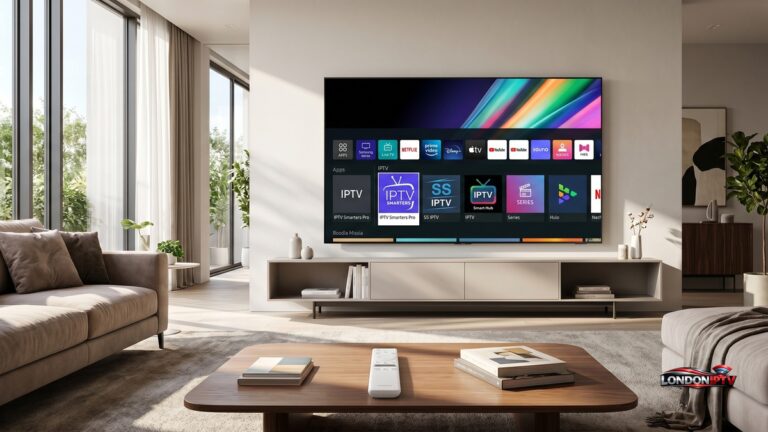
- Use the search bar to find your chosen IPTV app, whether that’s SS IPTV, Net IPTV or OttPlayer
- Click Install and wait for the download to finish
- Launch the app from your LG home screen
- Select your login method, either M3U URL or Xtream Codes API
- Enter your provider’s server URL, username and password
- Let the app load your channel playlist and sync the EPG data
- Start streaming, and you’re done
If your chosen app doesn’t show up in the LG Content Store, you’ll need to enable Developer Mode on your LG TV and sideload the package via USB drive. That’s occasionally required for certain versions of IPTV Smarters on older webOS builds.
How to Watch IPTV on LG TV Using SS IPTV
SS IPTV is the most versatile free option for watching IPTV on an LG Smart TV, and its webOS integration is cleaner than most competing apps:
- Open SS IPTV directly from the LG Content Store
- Go to Settings, then Playlist, then Add New Source
- Choose between an M3U URL, a local file upload, or a remote web portal entry
- Paste your M3U link or enter your provider’s portal address
- Hit Load, and your full channel list appears within seconds
- Use the Magic Remote pointer to navigate categories and favourites
One standout feature of SS IPTV is its remote upload system. You can add or manage entire playlists from your phone or laptop through the SS IPTV web portal, so you never have to type long server URLs on a TV remote again.
How to Watch IPTV on LG TV With Net IPTV
Net IPTV is one of the cleanest and most reliable apps for watching IPTV on an LG Smart TV with a straightforward M3U playlist:
- Find and install Net IPTV from the LG Content Store
- Open the app, and it displays your TV’s unique MAC address on screen
- Visit the Net IPTV web portal on your phone or PC
- Enter the MAC address shown on your TV
- Upload your M3U file or paste the playlist URL into the web portal
- Save the settings and relaunch Net IPTV on your TV, and the channels load automatically
It’s a slightly different flow to the Xtream Codes based apps, but once the MAC address is registered, Net IPTV is rock solid. The Magic Remote pointer makes navigating its grid layout fast and intuitive once the channels are loaded.
How to Set Up IPTV for Free on LG Smart TV
If you’re asking whether you can set up IPTV without paying for a subscription, there are several genuine options worth knowing:
- Pluto TV: available directly in the LG Content Store, with more than 300 free live channels, ad supported and no account needed
- Plex: free live TV channels installable right from webOS, and decent for news and entertainment
- XUMO Play: built into newer LG Smart TV models natively
- Free M3U playlists: publicly shared lists that load inside Net IPTV or OttPlayer, free but with unpredictable uptime and quality
- Tubi: a strong free on demand library with some live news mixed in
The honest truth for free viewing in the long run is that public M3U lists are unreliable. They go down, get geo blocked, or drop channels without warning. A paid subscription, usually around $5 to $15 a month, gets you stable HD streams, proper EPG data, and actual support when something breaks.
Setup Tips to Maximise Performance on LG Smart TV
Once your setup’s complete, a few adjustments make a noticeable difference every time you use it:
- Go wired. Plug an Ethernet cable straight into your LG TV, since it clears up most buffering issues that crop up over Wi-Fi
- Use LG ThinQ AI voice search. Hold the mic button on your Magic Remote and say “Open SS IPTV” or “Open OttPlayer” to skip the home screen entirely
- Clear the cache monthly. Go to Settings, then App Manager, select your IPTV app, and clear the cache and data
- Match stream quality to your speed. Drop to HD instead of 4K if you’re on a shared or congested connection during peak hours
- Refresh your EPG manually. If the channel guide goes blank, go to the settings inside your app and force a guide re sync
- Keep webOS updated. LG regularly pushes fixes that improve streaming performance for third party IPTV apps
LG ThinQ AI also supports app shortcuts and routines, so you can set your TV to open your IPTV app at a fixed time each day, which is genuinely useful for regular viewers.
Quick Troubleshooting for IPTV on LG Smart TV
Running into problems? Here are the fastest fixes for the most common issues:
- App not in the LG Content Store: Check your LG account’s region and switch to the US or UK region to reach a wider app library
- Black screen on streams: Switch the stream format from HLS to TS in your IPTV app’s player settings
- OttPlayer not loading the playlist: Re enter your M3U URL, since special characters in the URL often break the connection silently
- Net IPTV channels not appearing: Double check every character of the MAC address in the web portal, since one wrong digit prevents activation entirely
- SS IPTV freezing or crashing: Reduce your active playlist size, since very large channel lists above 10,000 entries slow webOS apps significantly
- EPG guide not loading: Re add your XMLTV URL in the app settings and force a manual guide refresh
Final Checklist Before You Start Watching IPTV on LG Smart TV
Before you kick back and enjoy your streams, run through this final checklist to make sure everything’s dialled in:
- LG TV firmware updated to the latest webOS version
- IPTV app installed from the LG Content Store (SS IPTV, Net IPTV or OttPlayer)
- IPTV subscription credentials entered correctly, whether M3U or Xtream Codes
- EPG and channel guide synced and displaying programme data
- Wired Ethernet or strong Wi-Fi confirmed and stable
- Test stream running at full HD or 4K without buffering
IPTV on an LG Smart TV is one of the best cord cutting setups you can put together right now, with no extra hardware, no messy boxes, just your LG TV doing everything natively. With webOS powering app performance, LG ThinQ AI handling voice control, and the Magic Remote making navigation feel effortless, the whole experience is genuinely impressive. Whether you went with SS IPTV, Net IPTV or OttPlayer, you now know exactly how to watch IPTV on an LG TV the right way: fast, stable and completely on your terms.