IPTV on Android: The Ultimate Easy Setup Guide for 2026

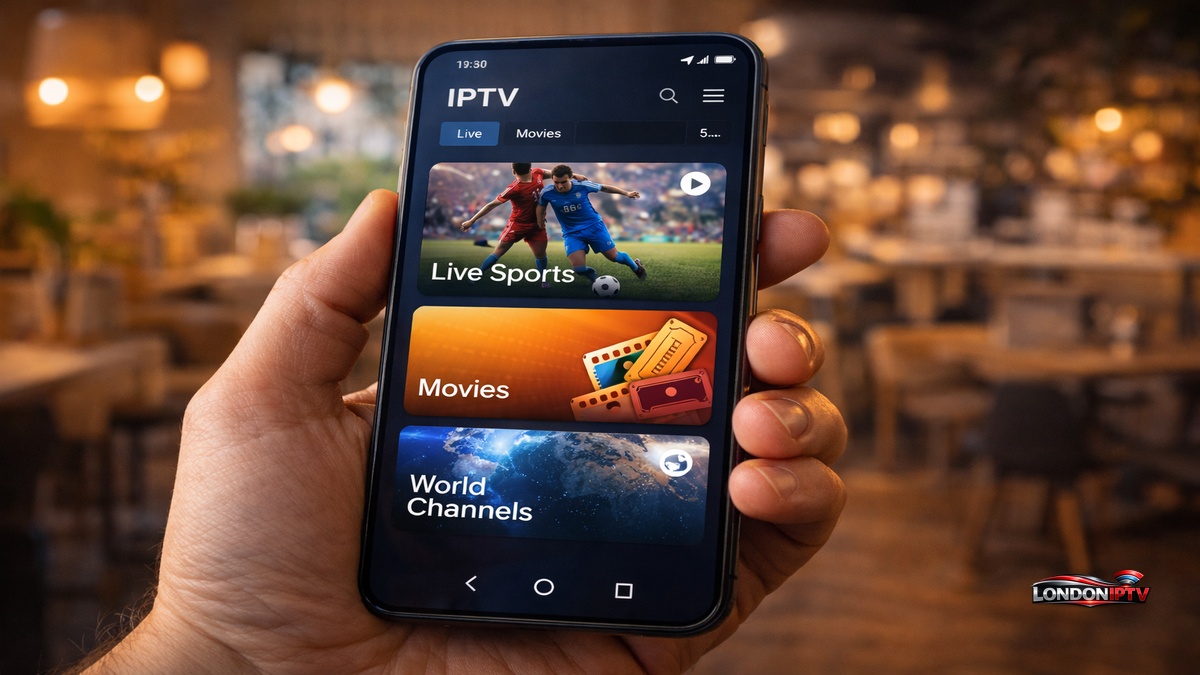
Table of Contents
Whether you’re sat on the sofa at home or out and about on mobile data (5G or 4G), getting IPTV on Android up and running on your phone has never been easier. This guide walks you through the best IPTV apps for Android, how to set the whole thing up step by step, and how to sideload APK files for those times when the Google Play Store doesn’t have what you’re after. All of it in plain English.
Why IPTV on Android Is the Most Flexible Mobile Streaming Setup
IPTV on Android hands you a level of freedom no other mobile platform really gets close to. Android lets you install apps straight from APK files, so you’re never stuck with whatever happens to be in the Play Store. If your favourite IPTV player gets delisted or pulled, you just grab the APK from the developer’s site and have it installed again in seconds.
Because Android is so open, every major IPTV app supports external players too. You can route any stream through MX Player for better hardware decoding, subtitle handling or custom audio tracks. That one feature alone makes IPTV on Android more capable than iOS for heavy users who want full control over playback.
What You Need Before You Set Up IPTV on Android
Before you get stuck into the setup, make sure you’ve got everything in place:
- An Android phone or tablet on Android 5.0 or newer
- An active IPTV subscription, either an M3U URL or an Xtream Codes login from your provider
- A steady internet connection, Wi-Fi at home or mobile data (5G or 4G) when you’re out
- Your provider’s server URL, username and password
- Google Play Store access, or the option to install an APK directly for sideloaded apps
- Optional: MX Player set as your external player for smoother playback
Here’s the thing first timers nearly always miss. If you’re installing an IPTV Smarters APK, or any APK from outside the Play Store, you have to switch on “Install Unknown Apps” in your Android settings first. Go to Settings, then Apps, then Special App Access, then Install Unknown Apps, pick your browser or file manager, and toggle it on. Skip that and the install just fails quietly every single time.
Best IPTV App for Android: Full Comparison
Choosing the right player is easily the most important call you’ll make here. This is how the leading apps compare:
| App | Free? | M3U Support | Xtream Codes | EPG | External Player | PiP Mode | Best For |
|---|---|---|---|---|---|---|---|
| IPTV Smarters Pro | Yes | Yes | Yes | Yes | Yes | Yes | Beginners |
| IBO Player | Yes | Yes | Yes | Yes | Yes | Yes | Simple setups |
| GSE Smart IPTV | Yes | Yes | Yes | Yes | Yes | Yes | Power users |
| TiviMate | Limited | Yes | Yes | Yes | Yes | Yes | TV style interface |
| MX Player | Yes | Yes | No | No | N/A | Yes | Standalone playback |
| Kodi | Yes | Yes | Yes | Yes | Yes | Yes | DIY / advanced users |
IPTV Smarters Pro is consistently the easiest pick for newcomers, with a clean interface, a quick Xtream Codes login, and a guided setup that has you streaming in under three minutes. IBO Player is a cracking lightweight alternative that loads playlists faster than Smarters on lower spec phones. GSE Smart IPTV is the one to go for if you want deep customisation, multiple playlists and full external player support for routing streams through MX Player.
How to Set Up IPTV on Android Using IPTV Smarters Pro
Here’s the full IPTV Smarters Pro setup from scratch, the most popular route to IPTV on Android in 2026:
- Open the Google Play Store on your Android phone
- Search for IPTV Smarters Pro and tap Install
- Once it’s installed, open the app and you’ll land on the welcome and login screen
- Tap Add New User, then choose Login with Xtream Codes API
- Give your profile a name, anything you fancy
- Fill in the Server URL, Username and Password from your IPTV provider
- Tap Add User, and the app checks your credentials and loads your full playlist
- Head to Live TV, VOD or Series from the main menu
- Tap any channel and you’re streaming
If your provider hands you an M3U URL instead of Xtream Codes, tap Add New User, then Load Your Playlist or File, choose M3U URL and paste it straight in. Both routes behave exactly the same once you’re through the setup.
How to Install the IPTV Smarters APK on Android (Sideload Method)
If IPTV Smarters Pro isn’t showing up in your regional Play Store, sideloading the APK is the cleanest way to get it running quickly:
- On your phone, open Settings, then Apps, then Special App Access, then Install Unknown Apps
- Pick Chrome or your default browser and switch Allow from this source to ON
- Open Chrome and head to the official IPTV Smarters website
- Download the latest APK file, which saves straight to your phone storage
- Open your file manager, go to Downloads, and tap the APK file
- Tap Install and wait for it to finish
- Open the app and run through the same Xtream Codes or M3U setup as above
The Downloader by AFTVNews app is an equally popular alternative. Install it from the Play Store, paste in the direct APK URL, and it handles the download and install in one tidy flow.
Setting Up IBO Player for IPTV on Android
IBO Player is one of the most underrated options for a fast IPTV player on Android, and it installs as a direct APK:
- Download the IBO Player APK from the official IBO Player website
- Allow installs from unknown sources as described above
- Open IBO Player once it’s installed
- On the main screen, choose Xtream Codes login
- Enter your server URL, username and password
- Tap Connect, and your channels load sorted by category with EPG data showing
- Go to Settings, then Player, and turn on external player support if you want streams routed through MX Player for hardware accelerated playback
IBO Player’s big edge over Smarters on mid range phones is speed. It loads large playlists noticeably quicker and uses less RAM while you’re streaming. If you’re on a phone with 3 to 4 GB of RAM, it’s the better daily driver.
Using Mobile Data (5G or 4G) for IPTV on Android
Watching IPTV on Android over mobile data is perfectly doable with the right settings in place:
- 5G is more than enough for 4K streams, and you can expect zero buffering anywhere coverage is strong
- 4G LTE handles HD (720p and 1080p) comfortably on most networks
- 3G or weak 4G means you should drop the quality to SD in your app settings to keep buffering at bay
A few ways to save mobile data while streaming:
- Set your player to SD or 720p when you’re on mobile data
- Turn on data saving mode inside your app if it has one
- Only download EPG data on Wi-Fi, since a single sync can eat 50 to 200 MB
- Disable background playlist refresh on mobile data in the app settings
Most setup guides skip the mobile data side entirely, but it’s one of the most common real world uses, especially for sports fans watching on the move.
Quick Troubleshooting for IPTV on Android
Hit a snag? These are the most reliable fixes:
- APK won’t install: Go to Settings, then Apps, then Special App Access, then Install Unknown Apps, and enable it for your browser or file manager
- Black screen on streams: Turn on external player support and route the stream through MX Player. That clears up hardware decoding issues on the vast majority of devices
- IPTV Smarters Pro crashes on launch: Clear the cache under Settings, then Apps, then Smarters, then Storage, then Clear Cache, and open it again
- Playlist loading very slowly: Switch from M3U URL to Xtream Codes API if your provider supports it, as Xtream Codes loads much faster on Android
- Buffering on mobile data: Drop the quality to 720p in your app settings. 4K needs a sustained 25 Mbps, which most mobile connections can’t promise
- IBO Player not finding channels: Re enter your server URL without any trailing slash, since IBO Player is fussy about URL formatting
Performance Tips to Get the Most From IPTV on Android
Once your setup’s sorted, these habits keep everything running smoothly:
- Turn on hardware decoding in your app’s player settings. Every major Android IPTV player supports GPU accelerated playback, and leaving it on cuts battery drain noticeably on long streams
- Use MX Player for 4K HEVC streams. Routing through an external player handles high bitrate H.265 better than most built in players on mid range hardware
- Clear your app cache weekly under Settings, then Apps, then your IPTV app, then Storage, then Clear Cache, to stop playlists loading slower over time
- Use Xtream Codes over M3U where you can. It syncs the EPG automatically, loads several times faster, and gives you VOD access that raw M3U links don’t
- Keep your APK updated. Apps installed by sideloading don’t refresh through the Play Store, so check the developer’s site every few months
- Download on Wi-Fi when you can. If your app supports downloads or recording, stick to Wi-Fi to avoid big mobile data charges
IPTV on Android is genuinely one of the best ways to take live TV anywhere with you in 2026, powerful, flexible and packed with options for every kind of user. Whether you go with IPTV Smarters Pro for its polished setup, IBO Player for its speed, or GSE Smart IPTV for deep customisation, you’ve now got everything you need to get a great IPTV app running perfectly on your phone today.