IPTV on Samsung Smart TV: The Ultimate Easy Setup Guide (2026)

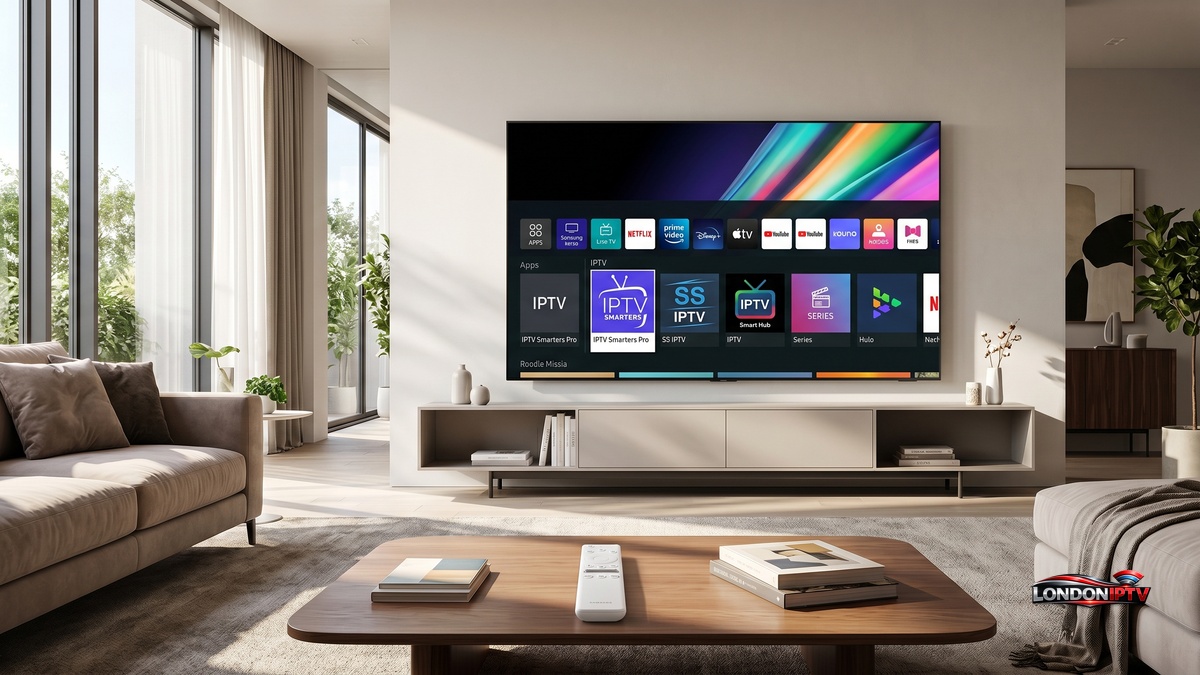
Table of Contents
IIf you’ve been asking yourself how to watch IPTV on a Samsung Smart TV, you’re about to find out exactly how to do it step by step, no technical degree required. Samsung’s Tizen OS makes the whole process smoother than most people expect, and you’ll be streaming live channels in minutes.
Why IPTV on Samsung Smart TV Beats Every Other Streaming Method
IPTV on a Samsung Smart TV is one of the cleanest setups you can get right now. Unlike Android boxes or Fire Sticks, you don’t need any extra hardware, since your TV does all the heavy lifting through its built in Tizen OS. Samsung’s Smart Hub acts as your central launchpad, which makes app installation and channel browsing genuinely quick.
It’s worth noting that LG TVs run on webOS and use the LG Content Store paired with the Magic Remote for navigation, which is a different ecosystem entirely. Samsung’s Tizen tends to be faster to set up in most real world tests, with snappier app load times and better app availability in the Samsung App Store.
What You Need Before You Set Up IPTV on Samsung
Before you jump in, make sure you’ve got everything in order:
- A Samsung Smart TV running Tizen OS (2016 models or newer recommended)
- An active IPTV subscription, either an M3U URL or an Xtream Codes login
- A stable internet connection, at least 10 Mbps for HD and 25 Mbps for 4K streams
- A Samsung account linked to your TV (required for app installs)
- Your provider’s server URL, username and password
Here’s something people often overlook on Samsung: make sure your TV’s firmware is updated before you install anything. Outdated firmware causes app crashes and login errors more often than the apps themselves do.
Best Apps to Watch IPTV on Samsung Smart TV
Choosing the right app is the most important part of the whole process. Here’s a side by side look at the top options for Samsung Smart TV:
| App | Free? | M3U Support | Xtream Codes | Direct IP Entry | TV Friendly UI | Best For |
|---|---|---|---|---|---|---|
| TiviMate IPTV | Paid | Yes | Yes | Yes | Excellent | All round use |
| IBO Player | Paid | Yes | Yes | Yes | Good | Simple M3U setups |
| IBO Pro Player | Paid | Yes | Yes | Yes | Good | Multi playlist users |
| IPTV Smarters Pro | Yes | Yes | Yes | No | Excellent | Beginners |
| Smart IPTV (SIPTV) | Paid | Yes | No | Yes | Great | MAC based setups |
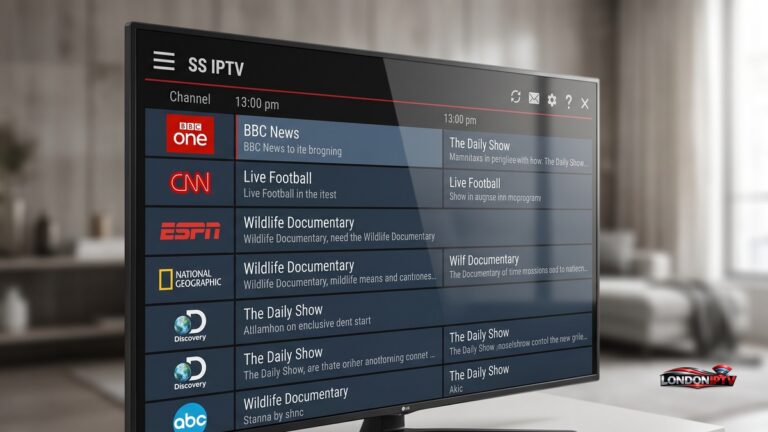
SS IPTV is the most feature packed free app available directly in the Samsung App Store, since it supports Direct IP Entry, playlist management and EPG at no cost. Net IPTV is the one to reach for if you want the absolute simplest M3U based setup with no fuss. OttPlayer is solid for anyone juggling several provider playlists.
How to Set Up IPTV on Samsung Smart TV: Full Step by Step
Here’s exactly how to do it on your Samsung TV from scratch:
- Press the Home button on your remote to open the Home Dashboard
- Go to the Apps section in the Home Dashboard
- Open the Search bar and type your chosen app name (for example, SS IPTV or Net IPTV)
- Select the app and click Install, with your Samsung account logged in
- Once it’s installed, open the app from your Home Dashboard
- Choose your connection method: M3U URL, Xtream Codes or Direct IP Entry
- Enter your provider’s server URL, username and password
- Let the app load your playlist and sync the EPG (Electronic Programme Guide)
- Browse your channel list and start watching
The Direct IP Entry method is particularly handy if your provider gives you a portal URL instead of a standard M3U link. Apps like SS IPTV and Smart IPTV handle this natively.
How to Watch IPTV on Samsung Smart TV Using SS IPTV
SS IPTV is the most versatile free option for watching IPTV on a Samsung Smart TV, and the setup is straightforward:
- Open SS IPTV from your Home Dashboard
- Go to Settings, then Playlist, then Add New
- Choose between an M3U URL, Direct IP Entry, or a local file upload
- Paste your M3U link or enter your portal address
- Hit Load and wait for your channels to appear
- Navigate using your remote, since SS IPTV has a clean, TV optimised layout
One underrated feature: SS IPTV lets you upload playlists remotely from a phone or PC through its web portal, which saves a ton of typing on the TV remote.
How to Watch IPTV on Samsung Smart TV With Net IPTV
Net IPTV is one of the cleanest apps for watching IPTV on a Samsung Smart TV if you’re using a simple M3U playlist:
- Install Net IPTV from the Samsung App Store
- Open the app, and it’ll show your TV’s MAC address on screen
- Go to the Net IPTV web portal on your phone or PC
- Enter the MAC address, then upload your M3U file or paste the URL
- Save and relaunch Net IPTV on your TV, and the channels load automatically
It’s a bit different to the Xtream Codes setup flow, but for M3U only users, Net IPTV’s MAC based activation is clean and reliable.
How to Set Up IPTV for Free on Samsung Smart TV
If you’re asking whether you can set up IPTV without paying for a subscription, there are a few legitimate options worth knowing about:
- Pluto TV: available directly in the Samsung App Store, with more than 300 free live channels, ad supported
- XUMO Play: another free linear TV service with a clean Samsung TV interface
- Plex Live TV: free channels via the Plex app, available on Tizen OS
- Free M3U playlists: publicly available online, and they work inside Net IPTV or OttPlayer, though reliability varies
- Tubi: free on demand with some live news channels included
When people ask about free viewing in the long run, the honest answer is that public M3U lists tend to drop channels, go offline, or get geo blocked without warning. A paid subscription, usually around $5 to $15 a month, gives you stable streams, proper EPG data, and actual support when things go wrong.
Setup Tips to Maximise Performance on Samsung Smart TV
Once your setup’s done, a few tweaks make a real difference in daily use:
- Wired connection over Wi-Fi. Plug an Ethernet cable into your Samsung TV if your router is nearby, since it clears up most buffering issues instantly
- Clear the app cache regularly. Go to Settings, then Apps, select your IPTV app, then clear the cache every two to three weeks
- Match stream quality to your speed. If you’re on a shared connection, drop to HD instead of 4K to avoid buffering
- Use EPG sources. Apps like SS IPTV and OttPlayer support XMLTV EPG files, which gives you a proper TV guide layout
- Restart your TV weekly. Samsung Tizen TVs build up background processes that slow app performance over time
- Check your provider’s server status. Most IPTV providers have a status page or a Telegram group where downtime gets announced
Quick Troubleshooting for IPTV on Samsung Smart TV
Running into problems? Here are the fastest fixes:
- App not in the Samsung App Store: Check your TV’s region settings, since some apps are region locked and need a VPN or an account region change
- Black screen on channels: Switch the stream format from HLS to TS inside your app settings
- EPG not loading: Re enter your XMLTV URL and force a manual EPG refresh
- Net IPTV channels not appearing: Double check the MAC address entry on the web portal, since one wrong character breaks the whole link
- SS IPTV freezing: Reduce the playlist size by filtering to active channels only, since large playlists slow Tizen based apps
How to Watch IPTV on Samsung Smart TV: Final Checklist
To wrap up and make sure everything’s dialled in, run through this checklist:
- App installed from the Samsung App Store (SS IPTV, Net IPTV or OttPlayer)
- IPTV subscription credentials entered correctly
- EPG and channel guide synced and showing
- Wired connection or strong Wi-Fi confirmed
- Samsung TV firmware updated to the latest version
- Test stream running at full HD or 4K without buffering
Setting up IPTV on a Samsung Smart TV really is one of the most satisfying home entertainment upgrades you can make, with no extra boxes, no messy cables, just your TV doing exactly what you want it to. Whether you went with SS IPTV for its power features, Net IPTV for simplicity, or OttPlayer for multi playlist support, you’ve now got everything you need to watch IPTV on a Samsung Smart TV like a pro.