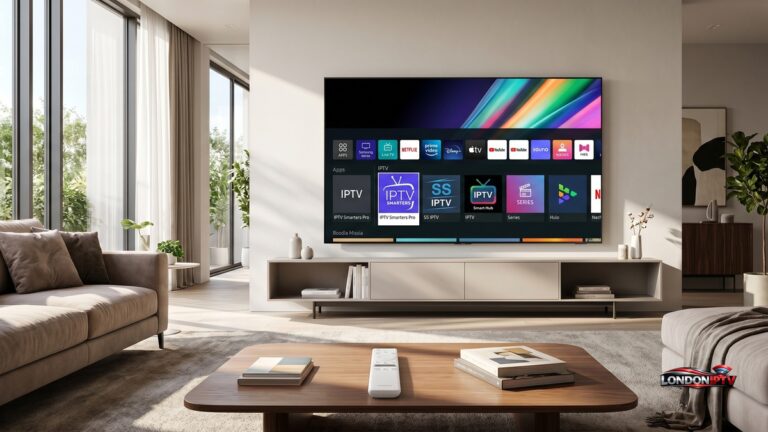
Setup IPTV on iPhone : Ultimate Fast Guide for Streaming on iOS

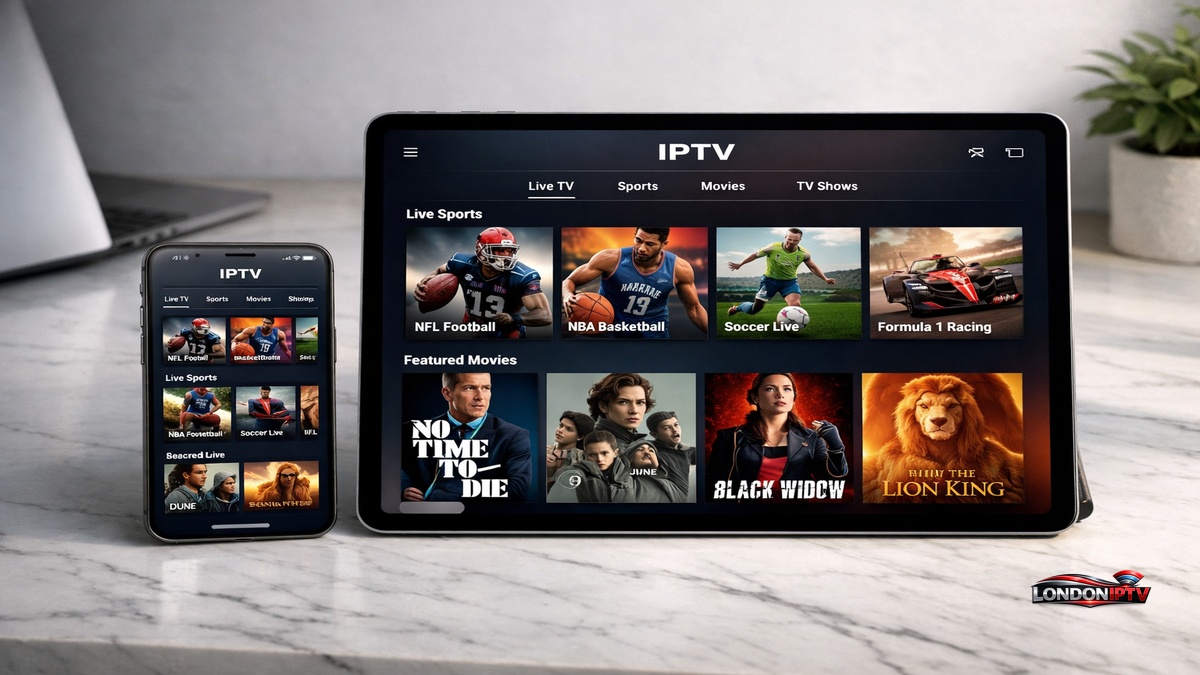
Table of Contents
If you want to setup IPTV on iPhone or iPad and start watching live TV today, you’re in the right spot. How to setup IPTV on iPhone & iPad is actually one of the most asked questions in the streaming world right now and the answer is simpler than most people expect. iOS and iPadOS handle IPTV apps beautifully, and this guide covers everything from app selection to first stream.
Why Setup IPTV on iPhone Is Worth Every Minute
Apple’s iOS / iPadOS ecosystem gives IPTV users some serious advantages over Android. Native AirPlay 2 support means you can beam any live channel from your iPhone or iPad directly to an Apple TV or AirPlay compatible screen in one tap no extra hardware, no messy cables.
HEVC (H.265) Codec support is baked right into iOS / iPadOS, which means IPTV apps can play 4K streams at dramatically lower data usage than older H.264 streams. On top of that, Picture in Picture (PiP) mode lets you float your live stream in a corner of the screen while you browse, message, or work something no cable box can do.
What You Need Before You Setup IPTV on iPhone
Before jumping into how to setup iptv on your device, make sure you have these essentials ready:
- An iPhone or iPad running iOS / iPadOS 13 or later (iOS 16+ recommended for best PiP and AirPlay 2 performance)
- An active IPTV subscription M3U URL or Xtream Codes login from your provider
- A stable internet connection minimum 10 Mbps for HD, 25 Mbps for 4K
- An App Store account to download your IPTV player
- Your provider’s server URL, username, and password
- Optional: an Apple TV or AirPlay 2 compatible TV for big screen viewing
One thing people forget when asking how do i setup iptv on iPhone: make sure your iOS / iPadOS is fully updated before downloading any IPTV app. Apps built for newer iOS versions crash constantly on outdated firmware update first, then install.
Getting IPTV running on your iPhone opens up live TV wherever you go. Before you commit to a subscription, our IPTV Free Trial UK 2026 guide highlights the top 10 services that let you trial on mobile first so you know the streams are smooth and reliable on iOS before paying.
Best Apps to Setup IPTV on iPhone & iPad
Picking the right player is the most critical part of the whole iptv setup process. Here’s how the top iOS options compare side by side:
| App | Free? | M3U Support | Xtream Codes | AirPlay 2 | PiP Mode | HEVC Support | Best For |
|---|---|---|---|---|---|---|---|
| GSE Smart IPTV | ✅ | ✅ | ✅ | ✅ | ✅ | ✅ | Power users |
| Cloud Stream Player | ✅ | ✅ | ✅ | ✅ | ✅ | ✅ | Multi device users |
| IPTV Smarters Pro | ✅ | ✅ | ✅ | ✅ | ✅ | ✅ | Beginners |
| Flex IPTV | Paid | ✅ | ❌ | ✅ | ✅ | ✅ | Clean UI fans |
| IPTVX | ✅ (limited) | ✅ | ✅ | ✅ | ✅ | ✅ | Apple first users |
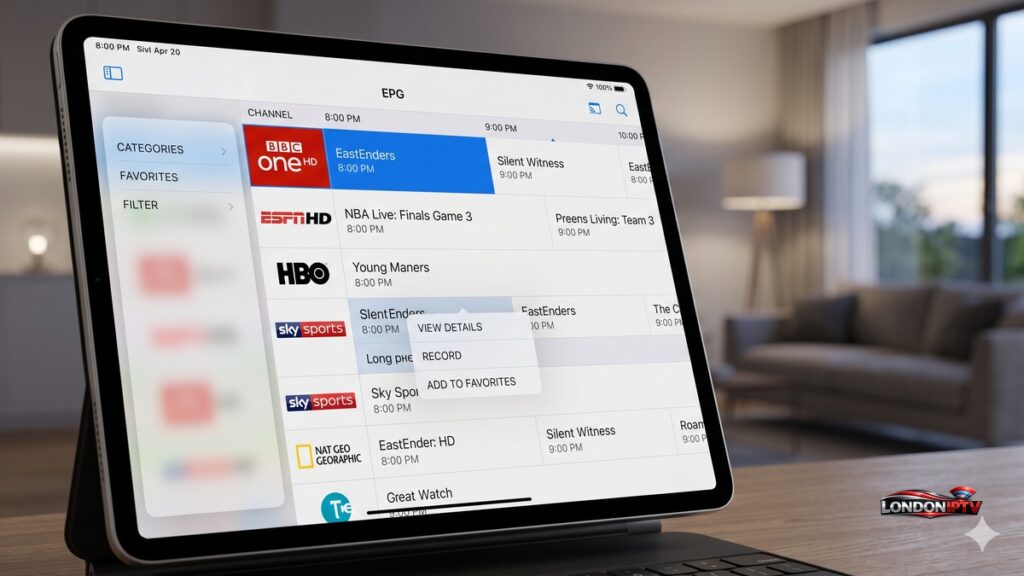
GSE Smart IPTV is consistently the top rated free option on the App Store for serious IPTV users it supports every major playlist format, has deep EPG integration, and handles HEVC (H.265) Codec streams without breaking a sweat. Cloud Stream Player is the one to pick if you’re streaming across multiple Apple devices and rely heavily on AirPlay 2 and Family Sharing features.
How to Setup IPTV on iPhone & iPad: Step by Step
Here is the exact process for how to setup IPTV on iPhone & iPad from a blank slate:
- Open the App Store on your iPhone or iPad
- Search for your chosen IPTV player GSE Smart IPTV or Cloud Stream Player are the strongest starting points
- Tap Get and wait for the install to complete
- Open the app from your home screen
- Navigate to Playlists or Add Source (varies by app)
- Choose your login method M3U URL or Xtream Codes API
- Paste your provider’s server URL, then enter your username and password
- Tap Save or Load let the app sync your channel list and EPG
- Test a stream to confirm everything is working
- Enable Picture in Picture (PiP) in the app settings for multitasking while watching
The whole iptv setup process takes about five minutes once you have your provider credentials ready. If your app isn’t in the App Store for your region, switching your Apple ID region to US or UK usually solves it instantly.
How to Setup IPTV on iPhone Using GSE Smart IPTV
GSE Smart IPTV is definately the most feature packed free app available right now for setup IPTV on iPhone users, and it’s been on the App Store long enough to be rock solid on all modern iOS versions:
- Open GSE Smart IPTV after installing from the App Store
- Tap Remote Playlists from the main menu
- Hit the + icon in the top right corner
- Choose Add M3U URL or Add Xtream Codes
- Paste your M3U link or enter your server URL, username, and password
- Name the playlist for easy reference and tap Save
- Pull down to refresh your channels load grouped by category
- Tap any channel to start streaming use the AirPlay 2 icon to cast to your TV
GSE Smart IPTV also supports XMLTV EPG files, so you get a proper TV guide with programme schedules. For anyone serious about how to setup IPTV on iPhone & iPad long term, this app is hard to beat.
Family Sharing and Multi Device Setup for IPTV on iOS
One underrated feature for iPhone and iPad IPTV users is Apple’s Family Sharing system. If you purchase a premium IPTV player like Flex IPTV or IPTVX through the App Store, Family Sharing lets up to six family members download it without paying again.
This makes the iptv setup process much more affordable for households one paid app purchase, multiple devices configured. Just make sure your IPTV subscription from your provider also supports multiple simultaneous streams, otherwise family members will knock each other offline mid stream.
How Do I Setup IPTV for Free on iPhone & iPad
If you’re wondering how do i setup iptv without spending money on a subscription, there are a few real options:
- Pluto TV free on the App Store 300+ live channels, fully ad supported, zero sign up needed
- Plex free live TV channels available right inside the Plex iOS app
- Tubi massive free library with some live news channels included
- Free M3U playlists from GitHub projects like iptv org publish thousands of free to air channels in M3U format paste directly into GSE Smart IPTV
- Peacock Free Tier includes a live feed of NBC and some sports channels at no cost
The honest reality when asking how do i setup iptv for free long term: free public playlists are unreliable. Channels drop, go geo blocked, or disappear overnight. A paid IPTV subscription starting at $5–$15/month is miles ahead in stability, picture quality, and EPG accuracy.
Using AirPlay 2 and Picture in Picture With Your IPTV Setup
Two iOS exclusive features that make setup IPTV on iPhone genuinely better than any Android or smart TV experience:
AirPlay 2 tap the AirPlay icon in your IPTV app during playback and your stream instantly mirrors to any Apple TV, HomePod display, or AirPlay 2 compatible TV. The stream quality stays crisp because AirPlay 2 maintains the original HEVC (H.265) Codec encoding.
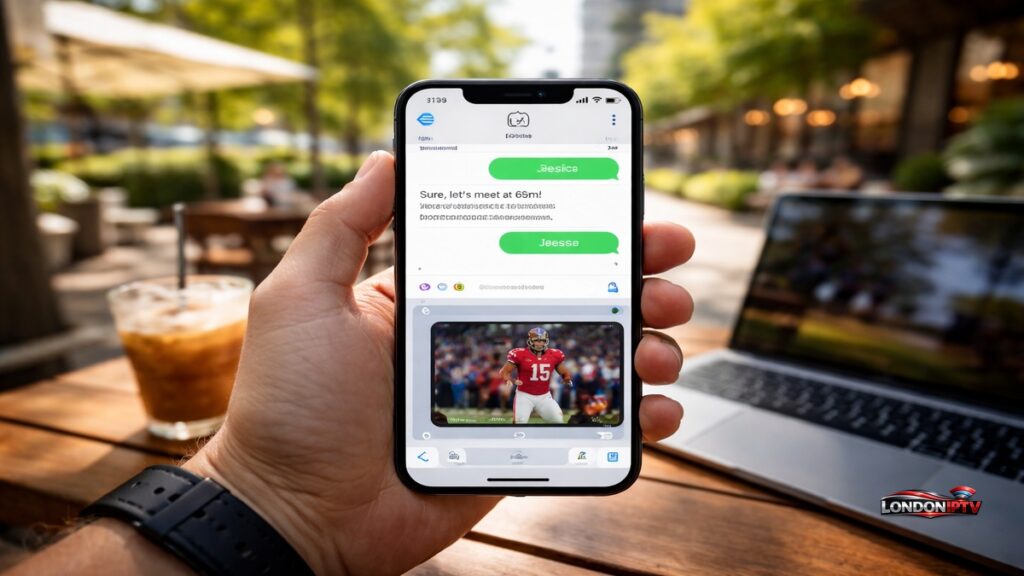
Picture in Picture (PiP) swipe up while watching a live channel and the stream shrinks into a floating window. You can drag it anywhere on screen, resize it, and keep watching while you use other apps. Its one of those features you don’t realise you needed until you’ve used it once.
Quick Troubleshooting for IPTV Setup on iPhone & iPad
Having problems? Here are the fastest fixes for the most common issues:
- App not found in App Store → Switch your Apple ID region to US or UK in Settings → Apple ID → Media & Purchases
- Black screen on streams → Enable HEVC (H.265) Codec hardware decoding in your app’s player settings
- AirPlay 2 not showing up → Make sure both your iPhone and Apple TV are on the same WiFi network
- Channels loading slowly → Reduce playlist size by deleting inactive channels large M3U files above 10,000 entries slow down iOS / iPadOS apps noticeably
- PiP mode not working → Check that Background App Refresh is enabled in iOS Settings for your IPTV app
- EPG not syncing → Re enter your XMLTV URL in the EPG settings and force a manual refresh
Performance Tips to Get the Most From Your iOS IPTV Setup
Once you’ve finished the iptv setup, these tweaks make real world streaming noticeably smoother:
- Use WiFi over cellular whenever possible a 5GHz WiFi connection gives the most stable streams on iOS / iPadOS devices
- Clear app cache every 2–3 weeks go to your IPTV app’s Settings and clear cached data to prevent slowdowns
- Set buffer size in GSE Smart IPTV to 5–10 seconds for live sports it eliminates most mid stream freezes
- Disable Low Power Mode while streaming it throttles the GPU and can cause HEVC (H.265) Codec decoding to drop frames
- Use AirPlay 2 for 4K content streaming 4K on your iPhone screen drains battery fast casting via AirPlay 2 offloads the rendering to your TV’s processor instead
- Enable Do Not Disturb during live sports iOS notification banners can interrupt Picture in Picture (PiP) mode and occasionally pause streams
Setup IPTV on iPhone the right way and it genuinely becomes one of the cleanest, most flexible streaming setups you can build anywhere, on any screen, with zero extra hardware required. Whether you chose GSE Smart IPTV for its power, Cloud Stream Player for its multi device strengths, or IPTV Smarters for its simplicity, you now have everything you need to setup IPTV on iPhone & iPad like a pro.