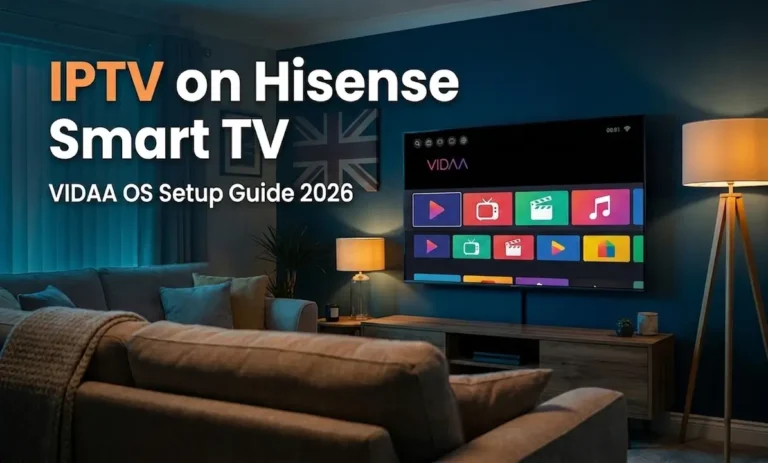
IPTV on Hisense Smart TV: The Complete 2026 VIDAA OS Setup Guide

You can run IPTV on Hisense Smart TV without a Firestick, using a native VIDAA app or a quick browser workaround. Hisense tellies run VIDAA OS, not Android, so the usual trick of dropping an APK onto the device simply won’t work. This guide gives you the apps that load M3U and Xtream Codes links, the exact steps, and the fixes for buffering or UK blocks. No extra box required.
Key takeaways
- VIDAA OS blocks APK side-loading, so use native apps or the browser.
- NetIPTV, SS IPTV and Smart IPTV are the reliable VIDAA choices.
- Both M3U links and Xtream Codes logins work once entered correctly.
- A VPN or DNS change fixes most UK provider blocks and buffering.
- Older or budget Hisense sets may need a cheap streaming stick.
Table of Contents
Can you install IPTV on Hisense Smart TV?
Yes. You can watch IPTV on Hisense Smart TV by installing a VIDAA-compatible player from the built-in app store, then feeding it your M3U link or Xtream Codes login. The catch is choice. VIDAA’s store is far smaller than Google Play, so you pick from a handful of approved apps rather than hundreds.
IPTV simply means television delivered over your broadband line instead of an aerial or dish. Your Hisense set already has the screen and the network chip. All it needs is the right app to read your subscription.
VIDAA now powers more than 200 million TVs worldwide. That scale matters. It means developers keep their VIDAA apps updated, unlike abandoned ports on smaller platforms.
The first time I set one up on a mate’s new Hisense in a Manchester flat, the store showed no obvious IPTV app on the home row. Ten minutes and one search later, NetIPTV was running a full UK channel list. The fix is rarely hard once you know where to look.
Why you can’t side-load IPTV apps on Hisense
You can’t side-load IPTV apps on Hisense because VIDAA OS is a closed system, not Android. There’s no option to enable “unknown sources” and install an APK file. That single design choice shapes everything about your setup.
Android TV and Google TV let you drag across IPTV Smarters Pro or TiviMate as APK files. VIDAA seals that door shut. Hisense built the platform around its own app store for security and stability, which keeps junk apps off your telly but limits your toolkit.
So forget the APK guides written for Firestick or Sony sets. They don’t apply here. If you’ve read a tutorial about a Xiaomi Mi Box IPTV UK setup, that uses Android and a completely different method.
What you get instead is the VIDAA app store IPTV UK selection: a curated list of players approved by Hisense. The good news is that the best ones handle M3U and Xtream Codes perfectly well. You lose flexibility. You gain reliability.
Best IPTV app Vidaa users can install today
The best IPTV app Vidaa offers right now are NetIPTV, SS IPTV and Smart IPTV. Each reads standard playlists, runs natively on your Hisense, and avoids the legal grey area of unofficial APKs. Your choice comes down to cost and how fiddly you find the activation.
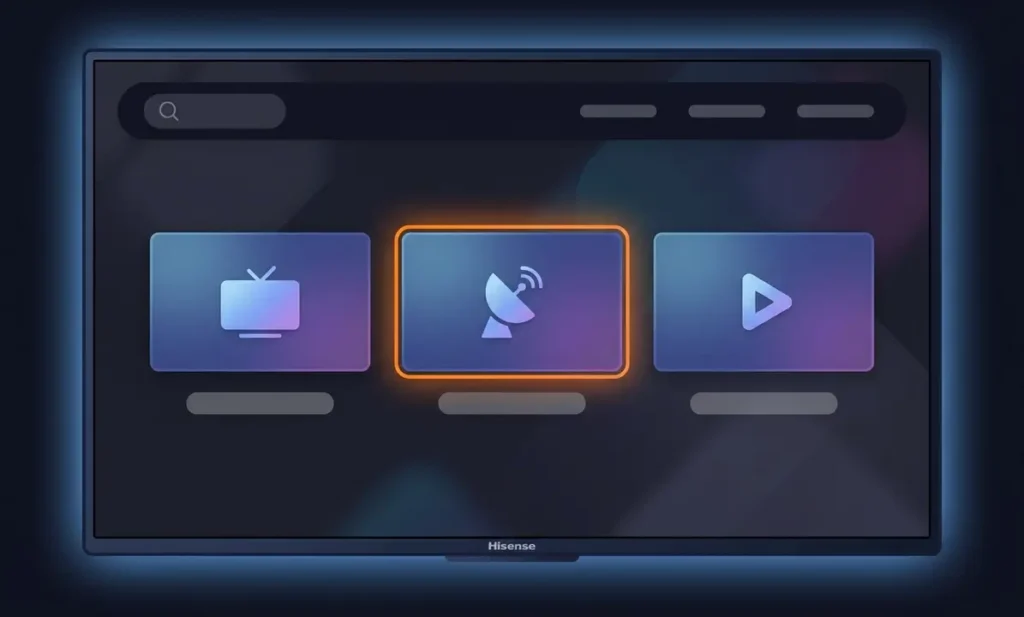
Here’s how the three main options compare for a UK viewer:
| App | UK cost | Playlist support | Best for |
|---|---|---|---|
| SS IPTV | Free | M3U URL, local file, portal | Beginners wanting zero cost |
| NetIPTV | Free app, optional donation | M3U, Xtream Codes API | Quick setup and stability |
| Smart IPTV (SIPTV) | One-off ~£4.70 after trial | M3U, Xtream Codes API | Heavy daily use and EPG |
Smart IPTV charges a one-off fee of €5.49, roughly £4.70, once the free 7-day trial ends. That’s a single payment, not a subscription. For a player you’ll use nightly, the cost is trivial.
Picking the best IPTV player for Hisense TV
Pick by how you watch. Want a proper electronic programme guide and catch-up layout? Smart IPTV earns its small fee. Just testing a link before you commit? Start with SS IPTV for free, then upgrade later.
NetIPTV sits in the middle as a strong default. It’s the best IPTV player for Hisense TV if you want channels live within minutes and rarely touch settings afterwards. All three appear in the VIDAA store search, so you don’t hunt across dodgy websites.
How to set up NetIPTV on your Hisense TV
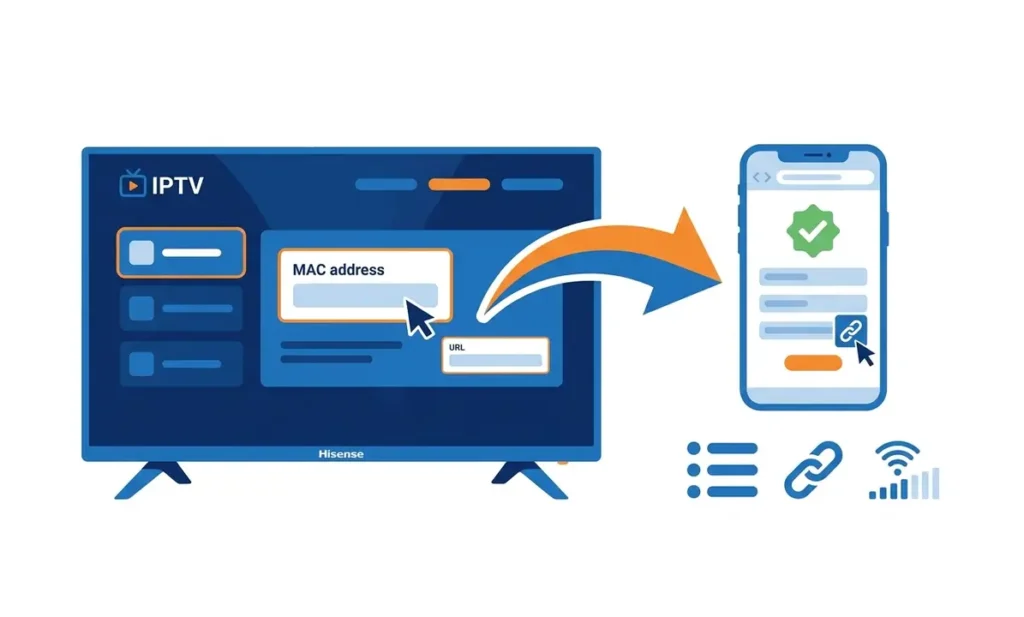
NetIPTV setup on Hisense takes about five minutes and centres on one detail: your TV’s MAC address. The app shows a MAC address and a short URL, and you paste your playlist into that URL from a phone or laptop.
Follow these steps in order:
- Open the VIDAA app store from your home screen.
- Search for NetIPTV and install it.
- Launch the app and note the MAC address and upload URL shown on screen.
- On your mobile or laptop, open that URL in a browser.
- Add your provider’s M3U link or Xtream Codes details, then save.
- Reload NetIPTV on the telly. Your channels appear.
Write the MAC address down exactly. A single wrong character means a blank screen. Many UK providers also ask for that MAC address to authorise your line, so keep it handy when you activate your subscription.
If the channels don’t load after saving, give it a full minute and reopen the app. The Vidaa OS IPTV app caches the list on first launch, and a busy server can take a moment to respond.
Loading your Hisense IPTV M3U playlist and Xtream Codes
Your Hisense IPTV M3U playlist loads through a single URL, while Xtream Codes uses a username, password and server address. Both work on VIDAA apps. The method you choose depends on what your provider sends you.
An M3U link is the simpler route. You paste one long web address, and the app pulls every channel from it. Xtream Codes splits that into three fields, which makes updating credentials easier and keeps the electronic programme guide tidier.
M3U versus Xtream Codes
Use this quick split to decide:
- M3U URL: best for a fast, one-off setup. Paste and play.
- Xtream Codes API: best for EPG, catch-up and cleaner channel categories.
Test the link before you blame the app. Paste your Hisense IPTV M3U playlist into a browser on your phone. A working link shows a wall of channel text or downloads a file. A dead one returns an error, which points the finger at your provider, not your telly.
Keep one copy of your login saved in your phone notes. Subscriptions expire, and re-entering details on a TV remote is a slog. A saved copy turns a five-minute faff into a ten-second paste.
Install IPTV Smarters on Hisense VIDAA OS via the browser
How to install IPTV Smarters on Hisense VIDAA OS is the question that trips most people up, because the proper app is Android-only. The workaround is the VIDAA web browser, which opens a player URL your provider hosts. You don’t install anything. You bookmark a web page.
Many UK IPTV services now offer a browser-based player styled like IPTV Smarters. Ask your provider for their web player link. Open the VIDAA browser, type the address, and log in with the same Xtream Codes details you’d use in the app.
This route has limits. Browser players can drop the odd feature, such as recording, and they reload if you switch inputs. For live telly and a basic guide, they do the job well enough.
Prefer a native experience? Stick with NetIPTV or Smart IPTV instead. The browser method is a sensible plan B when a provider’s web player is polished. Owners of other brands face the same trade-offs, as our guides to IPTV on Samsung Smart TV and IPTV on LG Smart TV explain for Tizen and webOS.
Fixing buffering and Hisense TV blocking IPTV UK
Hisense TV blocking IPTV UK usually isn’t the telly at all. It’s your broadband provider restricting the stream, or a weak connection starving the buffer. A VPN or a DNS change clears most of it.
“On VIDAA sets, nine in ten ‘blocked channel’ complaints we see trace back to ISP-level filtering or DNS, not the television. A reputable VPN or a manual DNS entry resolves the bulk of them.” — Tom Bradley, connected-TV support engineer
Try these fixes in order:
- Test on mobile data. If the stream plays on your phone’s 4G but not home Wi-Fi, your ISP is blocking it.
- Configure DNS on Hisense Smart TV. Set a public DNS in the network settings to dodge basic filtering.
- Add a VPN router or VPN box. VIDAA can’t run a VPN app, so apply it at router level.
- Use a wired Ethernet cable for live sport instead of Wi-Fi.
UK broadband setup for VIDAA streaming
A solid UK broadband setup for VIDAA streaming needs roughly 25 Mbps for stable 4K and around 10 Mbps for HD. Most UK fibre packages clear that with room to spare.
Buffering at peak times tells its own story. Between 19:00 and 23:00, household lines get congested, and a wired connection often cures stutter on its own. To configure DNS on Hisense Smart TV, open Settings, then Network, switch off automatic DNS, and enter your chosen addresses by hand.
Hisense U7K / E7K IPTV tips and when to add a box
Hisense U7K / E7K IPTV performance is strong because both run a recent VIDAA build with plenty of memory for smooth playback. Newer models handle the apps above without breaking a sweat. Older or budget Hisense sets are where you hit walls.
The U7K’s higher refresh rate suits live football, while the E7K offers the same VIDAA apps at a friendlier price. Smart IPTV VIDAA activation behaves identically on both. You activate once with the small fee, and the licence sticks to that TV.
Some Hisense models from before 2019 run an older VIDAA version with a thinner app store. If yours can’t find NetIPTV or SS IPTV, a cheap streaming stick is the pragmatic answer. A budget Android box or Firestick adds the full app catalogue for under £40.
That’s not a failure of your telly. It’s a quick upgrade path. Owners chasing maximum app choice sometimes pair a Hisense screen with a small box, much like the setup in our guide to IPTV on Sony Bravia Android sets.
A clear path to live telly
Getting IPTV on Hisense Smart TV comes down to working with VIDAA rather than against it. Skip the APK guides written for Android. Install a native player like NetIPTV, SS IPTV or Smart IPTV, paste in your M3U link or Xtream Codes login, and you’re watching within minutes. If a channel stalls or vanishes, the cause is almost always your broadband or an ISP block, both of which a DNS change or router VPN sorts quickly.
Newer U7K and E7K sets make the whole process painless, while older models may want a cheap stick. Fancy testing the setup before committing to a year? A no-pressure IPTV free trial is the simplest way to see how your Hisense handles a full channel list, and you can compare Cheap IPTV UK Plans once you’re happy.
Frequently asked questions
Is watching IPTV on a Hisense Smart TV legal in the UK?
Using the VIDAA apps and your TV is completely legal. Legality depends entirely on your subscription. Paid services from properly licensed providers are fine, while accessing channels you haven’t paid for is not. The app only reads whatever playlist you give it, so the responsibility sits with the source you choose, never the Hisense hardware or VIDAA itself.
Why does the VIDAA app store not show any IPTV apps?
Older Hisense models run an earlier VIDAA version with a reduced store, which can hide apps like NetIPTV. Update your TV software first through Settings, then Support, then System Update. If the apps still don’t appear, your model predates current support, and a cheap streaming stick gives you the full selection without replacing the television.
Can I use IPTV Smarters Pro directly on Hisense VIDAA OS?
Not as a native app, because IPTV Smarters Pro is built for Android. VIDAA can’t install APK files. The practical workaround is your provider’s browser-based player, opened in the VIDAA web browser using your Xtream Codes login. For a full native experience, install NetIPTV or Smart IPTV from the VIDAA store instead and enter the same credentials.
How much does it cost to set up IPTV on a Hisense TV?
The apps themselves are cheap or free. SS IPTV and NetIPTV cost nothing to install, while Smart IPTV charges a one-off fee of about £4.70 after a 7-day trial. Your main cost is the IPTV subscription, which varies by provider. A cheap streaming stick, if your model needs one, adds roughly £30 to £40.