IPTV on Android: The Ultimate Easy Setup Guide for 2026

Table of Contents
Whether you’re at home on your couch or out running on Mobile Data (5G/4G), getting IPTV on Android up and running on your phone has never been simpler. This guide covers the best IPTV app for Android, exactly how to set up IPTV on Android step by step, and how to sideload APK files when the Google Play Store doesn’t have what you need all in plain English.
Why IPTV on Android Is the Most Flexible Mobile Streaming Setup
IPTV on Android gives you a level of freedom no other mobile platform comes close to matching. Android lets you install apps directly from APK files, meaning you’re never locked to what’s available in the Play Store. If your preferred IPTV player for Android phone gets delisted or removed, you simply download the apk file from the developer’s site and install it in seconds.
The open nature of Android also means every major IPTV app supports External Player Support you can route any stream through MX Player Integration for superior hardware decoding, subtitle handling, or custom audio tracks. That single feature makes IPTV on Android more powerful than iOS for heavy IPTV users who want full control over playback.
What You Need Before You Set Up IPTV on Android
Before you dive into how to set up IPTV on Android, make sure you have everything in place:
- An Android phone or tablet running Android 5.0 or higher
- An active IPTV subscription M3U URL or Xtream Codes login
- A stable internet connection WiFi for home use, Mobile Data (5G/4G) on the go
- Your provider’s server URL, username, and password
- Google Play Store access, or the ability to install an apk directly for sideloaded apps
- Optional: MX Player Integration enabled in your IPTV app for enhanced playback
One thing people always forget when setting up an IPTV player for Android phone for the first time: if you’re installing an iptv smarters apk or any other APK outside the Play Store, you need to enable “Install Unknown Apps” in Android Settings first. Go to Settings → Apps → Special App Access → Install Unknown Apps → select your browser or file manager → toggle it on. Skip this step and the Installation will fail silently every time.
Best IPTV App for Android: Full Comparison
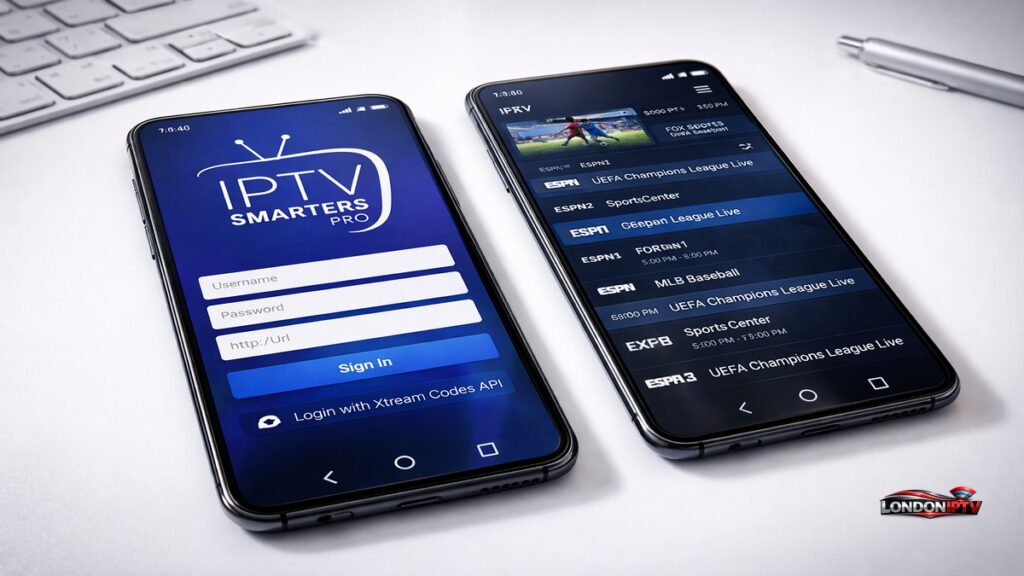
Picking the right IPTV player for Android phone is the most important decision in this whole process. Here’s how the top apps stack up:
| App | Free? | M3U Support | Xtream Codes | EPG | External Player | PiP Mode | Best For |
|---|---|---|---|---|---|---|---|
| IPTV Smarters Pro | ✅ | ✅ | ✅ | ✅ | ✅ | ✅ | Beginners |
| IBO Player | ✅ | ✅ | ✅ | ✅ | ✅ | ✅ | Simple setups |
| GSE Smart IPTV | ✅ | ✅ | ✅ | ✅ | ✅ | ✅ | Power users |
| TiviMate | ✅ (limited) | ✅ | ✅ | ✅ | ✅ | ✅ | TV style interface |
| MX Player | ✅ | ✅ | ❌ | ❌ | N/A | ✅ | Standalone playback |
| Kodi | ✅ | ✅ | ✅ | ✅ | ✅ | ✅ | DIY / advanced users |
IPTV Smarters Pro is consistently the best IPTV app for Android for new users clean UI, fast Xtream Codes login, and a guided setup that gets you streaming in under three minutes. IBO Player is a brilliant lightweight alternative that loads playlists faster than Smarters on lower spec phones. GSE Smart IPTV is the pick if you want deep customisation, multiple playlists, and full External Player Support for routing streams through MX Player Integration.
How to Set Up IPTV on Android Using IPTV Smarters Pro
Here is the full IPTV Smarters Pro Android setup from scratch the most popular method for IPTV on Android in 2026:
- Open the Google Play Store on your Android phone
- Search for IPTV Smarters Pro and tap Install
- Once installed, open the app you’ll see the welcome/login screen
- Tap Add New User → select Login with Xtream Codes API
- Enter a name for your profile (anything you like)
- Fill in your Server URL, Username, and Password from your IPTV provider
- Tap Add User the app verifies your credentials and loads your full playlist
- Navigate to Live TV, VOD, or Series from the main menu
- Tap any channel to start streaming enjoy your IPTV on Android
If your provider gives you an M3U URL instead of Xtream Codes, tap Add New User → Load Your Playlist or File / Xtream Codes → select M3U URL and paste it directly. Both methods work identically in the IPTV Smarters Pro Installation flow.
How to Install IPTV Smarters APK on Android (Sideload Method)
If IPTV Smarters Pro isn’t showing in your regional Play Store, the iptv smarters apk sideload method is the cleanest workaround for getting IPTV on Android running fast:
- On your Android phone, open Settings → Apps → Special App Access → Install Unknown Apps
- Select Chrome or your default browser and toggle Allow from this source to ON
- Open Chrome and go to the official IPTV Smarters website
- Download the latest iptv smarters apk file it downloads directly to your phone storage
- Open your file manager, navigate to Downloads, and tap the APK file
- Tap Install and wait for the Installation to complete
- Open the app and follow the same Xtream Codes or M3U setup steps as above
Using the downloader app is an equally popular alternative search “Downloader by AFTVNews” on the Play Store, install it, paste the direct APK URL, and it handles the download and Installation in one clean flow.
Setting Up IBO Player for IPTV on Android
IBO Player is one of the most underrated options when it comes to a fast IPTV player for Android phone setup, and it’s available as a direct APK install:
- Download the ibo player APK from the official IBO Player website
- Allow Installation from unknown sources as described above
- Open ibo player after installing
- On the main screen, choose Xtream Codes login
- Enter your server URL, username, and password
- Tap Connect your channels load sorted by category with EPG data visible
- Go to Settings → Player → enable External Player Support if you want streams routed through MX Player Integration for hardware accelerated playback
IBO Player’s biggest advantage over Smarters on mid range Android phones is speed it loads large playlists significantly faster and uses less RAM during active streaming sessions. For anyone on a phone with 3–4GB of RAM, its the better daily driver.
With the app installed on your Android device, you’re just one good provider away from a full streaming setup. Browse our IPTV Free Trial UK 2026 guide to discover the top services offering free trials, so you can test performance on your specific device before spending a penny.
Using Mobile Data (5G/4G) for IPTV on Android
Watching IPTV on Android over Mobile Data (5G/4G) is totally doable with the right settings in place:
- 5G connection more than enough for 4K streams expect zero buffering in areas with strong coverage
- 4G LTE connection handles HD (720p/1080p) streams comfortably on most networks
- 3G or weak 4G reduce stream quality to SD inside your IPTV app settings to avoid buffering
Tips to save mobile data while streaming IPTV on Android:
- Set your IPTV player for Android phone to SD or 720p quality on mobile data
- Enable data saving mode inside your IPTV app if available
- Download EPG data only on WiFi EPG syncs can use 50–200MB per update
- Avoid background playlist refresh on Mobile Data (5G/4G) disable auto refresh in app settings
Most IPTV Smarters Pro Android setup guides skip the mobile data section entirely, but its one of the most common real world use cases especially for sports fans watching on the go.
Quick Troubleshooting for IPTV on Android Phone
Running into problems? Here are the most reliable fixes:
- APK won’t install → Go to Settings → Apps → Special App Access → Install Unknown Apps and enable it for your browser or file manager
- Black screen on streams → Enable External Player Support and route the stream through MX Player Integration it solves hardware decoding issues on 90% of devices
- IPTV Smarters Pro crashes on launch → Clear app cache via Settings → Apps → Smarters → Storage → Clear Cache, then relaunch
- Playlist loading very slowly → Switch from M3U URL to Xtream Codes API if your provider supports it Xtream Codes is significantly faster to load on Android
- Buffering on Mobile Data (5G/4G) → Drop stream quality to 720p in your IPTV app settings 4K streams require sustained 25 Mbps which most mobile connections can’t guarantee
- IBO Player not finding channels → Re enter your server URL without any trailing slash ibo player is sensitive to URL format differences
Performance Tips to Get the Most From IPTV on Android
Once your how to set up IPTV on Android process is complete, these habits keep everything running smoothly:
- Enable hardware decoding in your app’s player settings every major IPTV player for Android phone supports GPU accelerated playback keeping it on lowers battery drain significantly during long streams
- Use MX Player Integration for 4K HEVC streams External Player Support through MX Player handles high bitrate H.265 streams better than most built in players on mid range Android hardware
- Clear app cache weekly go to Settings → Apps → your IPTV app → Storage → Clear Cache to prevent playlist loading slowdowns over time
- Use Xtream Codes over M3U wherever possible it syncs EPG automatically, loads 3–5x faster, and gives you VOD access that raw M3U links don’t include
- Keep your APK updated apps installed via iptv smarters apk or ibo player APK don’t auto update through the Play Store check the developer’s site every few months for the latest version
- Download streams on WiFi when possible if your IPTV app supports download/recording features, always use WiFi to avoid large Mobile Data (5G/4G) charges
IPTV on Android is definately one of the best ways to take live TV anywhere with you in 2026 powerful, flexible, and loaded with options for every level of user. Whether you chose IPTV Smarters Pro for its polished IPTV Smarters Pro Android setup flow, IBO Player for its speed, or GSE Smart IPTV for deep customisation, you now have everything you need to get the best IPTV app for Android working perfectly on your phone today