VLC Not Working IPTV UK: 7 Steps to Fix Loops, Buffering and ISP Blocks

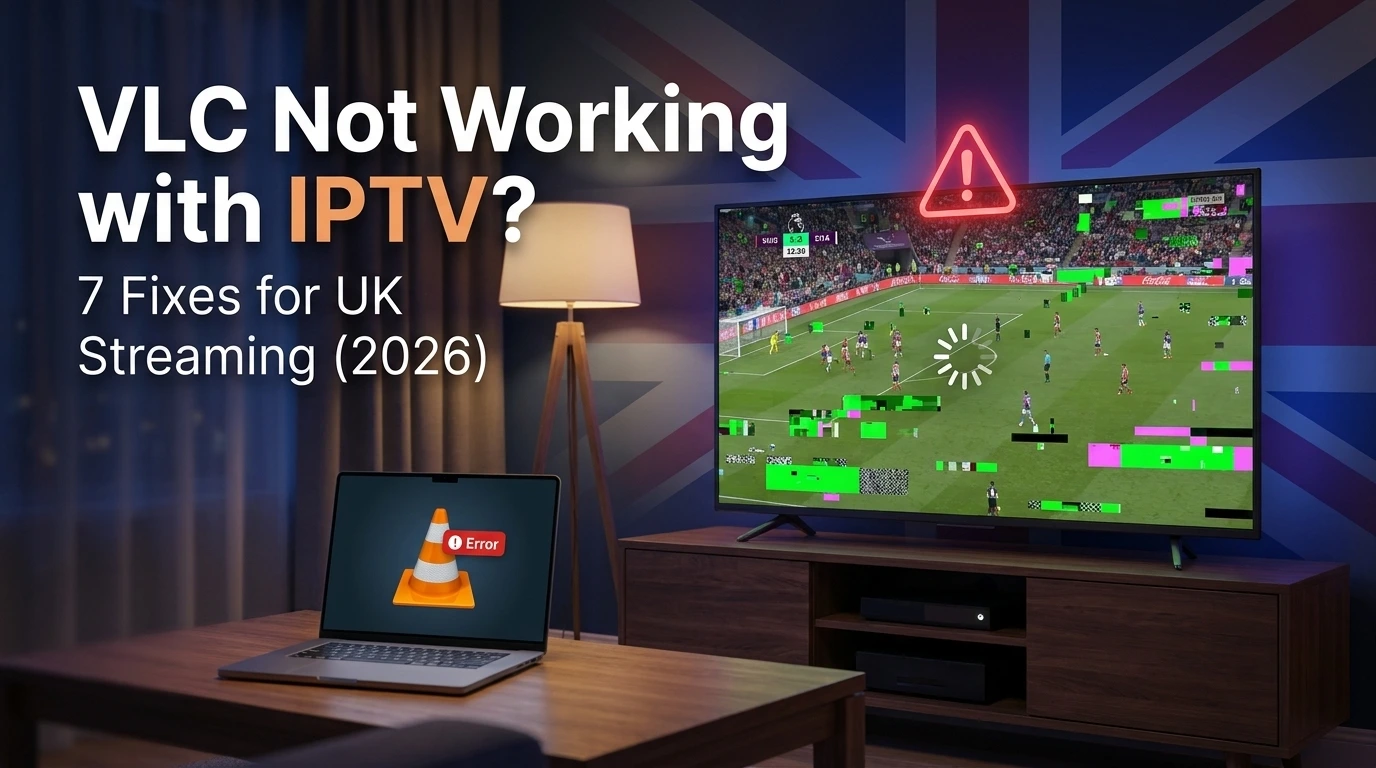
If VLC not working IPTV UK streams is ruining your match night, the cause is almost always one of three things: a broken M3U link, an undersized cache, or your broadband provider quietly blocking the source. Fix those and the picture comes back. This guide gives you seven concrete fixes, in the order a working engineer would try them. No fluff, no reinstalling Windows, just the settings that actually move the needle.
Key takeaways
- Most VLC IPTV failures trace back to a dead M3U URL or expired subscription, not VLC.
- Raising network caching from the 1,000 ms default stops freezing on busy UK evenings.
- The 1-second loop bug is a buffer and codec issue you can fix in two settings.
- UK ISP blocking IPTV VLC is common; a reputable VPN restores access.
- A 403 forbidden error means authentication, not a VLC fault.
Table of Contents
Why is VLC not working IPTV UK streams right now?
Nine times out of ten, VLC isn’t broken. The playlist behind it is, or your network is interfering. VLC just plays what the M3U file points at, so when the link expires or the server drops, you see a black screen and blame the player.
Start by splitting the problem in two. Is it VLC, or is it the source? Open any well-known public test stream. If that plays, your VLC install is fine and the fault sits with your IPTV link or your connection.
VLC is the most downloaded media player on the planet, with more than 3 billion downloads logged by its developers. That maturity matters. A tool that stable rarely fails on its own.
IPTV itself simply means television delivered over your internet line rather than an aerial or satellite dish Internet Protocol television. So every link in that chain, from the provider’s server to your router, can break the stream. VLC is only the final step.
I learned this the hard way during a Champions League night, swearing at VLC for ten minutes before realising my subscription had lapsed at midnight. The player was blameless.
Run through these quick checks before touching any settings:
- Is your subscription active and paid?
- Does the M3U link open in a browser, or does it 404?
- Is your internet stable on other devices?
- Are you on the latest VLC version (3.0.21 or newer)?
If all four pass and you still get VLC IPTV no stream, the fixes below sort the rest.
VLC won’t play M3U: fix the playlist that refuses to load
When VLC won’t play M3U files, the link is usually expired, mistyped, or pointing at a server that’s down. The file format is plain text, so a single broken character stops everything.
First, test the link itself. Paste the full M3U URL into a browser. A working link either downloads a file or shows a wall of channel text. A dead one returns an error page. That tells you instantly whether the problem is your provider.
Open the stream the right way
People often open the M3U as a local file when it’s actually a web link. Use the correct door:
- For a web link: Media > Open Network Stream, paste the URL, click Play.
- For a downloaded file: Media > Open File, then select the
.m3uor.m3u8.
Mixing these up is a classic cause of M3U playlist not loading VLC errors. The network option expects a URL. The file option expects something already saved to your drive.
When the download itself fails
A VLC crash on M3U download often points at a huge playlist. Some UK providers ship lists with 15,000-plus channels, and older laptops choke loading them all at once.
Ask your provider for a trimmed list, or use a category-specific link covering only sport or UK channels. Smaller lists load faster and crash less. If you’re setting this up fresh, our guide to IPTV on Windows PC walks through importing playlists cleanly.
The 1-second loop: VLC IPTV playlist loop fix
The notorious 1-second loop, where a stream plays for a moment then restarts forever, is a buffer starvation problem. VLC grabs a tiny chunk, runs out, and jumps back to the start instead of waiting. The VLC IPTV playlist loop fix lives in two settings.
Here’s the fast version. Turn off loop mode, then feed VLC a bigger buffer so it stops starving.
Step one: kill the loop button
Look at the playback controls along the bottom. The loop icon, two curved arrows, cycles through three states: off, loop all, loop one. Click until it’s plain grey and inactive. A stuck “loop one” setting alone can cause the restart.
Step two: raise the network buffer
A short buffer is the real culprit. The default network caching millisecond VLC value is only 1,000 ms, which is fine for a fast fibre line and hopeless for a congested evening connection.
- Open Tools > Preferences.
- Bottom left, under “Show settings”, click All.
- Go to Input / Codecs.
- Find Network caching (ms).
- Change 1000 to 3000, then save and restart the stream.
That single change cures most loops. If it persists, push to 5000 and test again.
VLC freezing IPTV: change VLC cache size to stop buffering
VLC freezing IPTV mid-broadcast almost always means the buffer can’t keep pace with your connection. The fix is to change VLC cache size upward so the player stores more video before it needs more. VLC network stream buffering smooths out the dips when your line slows.
UK evenings are the worst offenders. Between roughly 19:00 and 23:00, household broadband contends with everyone streaming at once, and a 1,000 ms buffer simply runs dry.
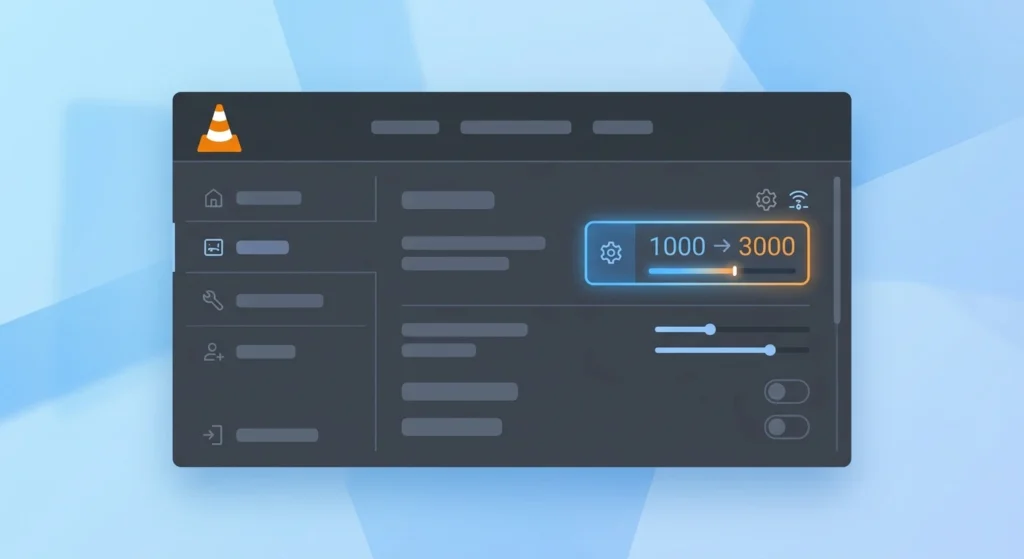
Use this table to pick a sensible value for your line:
| Network caching value | Best for | Trade-off |
|---|---|---|
| 1000 ms (default) | Fast fibre, 100 Mbps+ | Quick start, stutters on busy nights |
| 3000 ms | Standard UK broadband | Balanced, far fewer drops |
| 5000 ms+ | Rural or slow ADSL | Very stable, slower channel switching |
The setting sits in the same place as the loop fix, under Input / Codecs > Network caching (ms) once you’ve switched preferences to “All”. Tweak it, restart the stream, and judge the result over a full five minutes rather than ten seconds.
Two more habits cut freezing:
- Close other heavy apps and browser tabs eating bandwidth.
- Use a wired Ethernet cable instead of Wi-Fi for live sport.
A wired connection alone resolved constant buffering for a mate of mine in a top-floor flat where the router signal barely reached. If freezing only hits one channel, that channel’s source server is overloaded, not your setup. For dead channels specifically, check our notes on the IPTV no signal error.
VLC IPTV codec error: get the picture and sound back
A VLC IPTV codec error usually shows as sound with no picture, picture with no sound, or a green and pink scrambled mess. VLC can’t decode the format the stream is using, and the answer is a settings change rather than a reinstall.
Modern IPTV often streams in H.265 (HEVC). Older VLC builds and weaker machines struggle with it. Update first: Help > Check for Updates. A current version ships better decoders.
Force hardware decoding off
When the picture corrupts, your graphics chip is mishandling the decode. Switch it to software:
- Tools > Preferences > Input / Codecs.
- Find Hardware-accelerated decoding.
- Set it to Disable.
- Save and reopen the stream.
Software decoding uses more processor power but renders cleanly. On a recent laptop you won’t notice the load.
Sound but no vision, or vision but no sound
This points at a missing audio or video codec for that specific channel. Try a different channel from the same provider. If others play perfectly, the broken one is encoded oddly at source and only your provider can re-encode it. Tweaking your VLC input codecs settings won’t rescue a stream that’s malformed before it reaches you.
VLC IPTV no stream after a UK ISP block
If a channel worked last week and now gives you nothing, UK ISP blocking IPTV VLC is a likely cause. Several major UK providers restrict access to certain streaming servers, especially during live football, and VLC then reports VLC IPTV no stream even though your subscription is valid.
The tell-tale sign: the same M3U link works on mobile data but fails on home broadband. That gap points squarely at your provider, not VLC.
Test it in 60 seconds
- Disconnect your phone from Wi-Fi.
- Open the stream on mobile data.
- If it plays, your home ISP is the blocker.
Restore access with a VPN
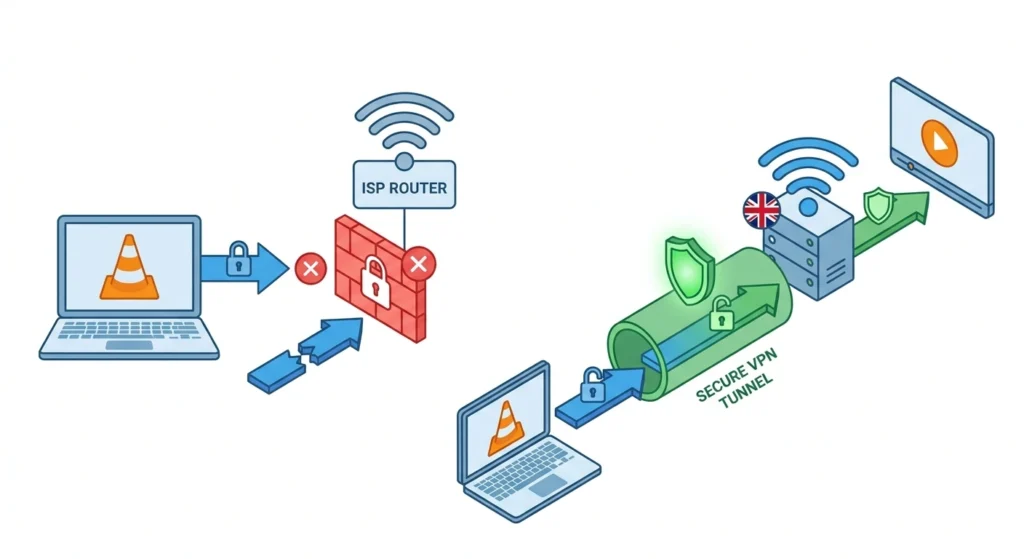
A VPN routes your traffic through another server, so your ISP can’t see or block the IPTV source. Picking the best VPN for VLC streaming comes down to speed and UK-friendly servers.
- Choose a provider with fast, nearby servers to limit speed loss.
- Connect before you open VLC.
- Pick a server in the UK or a neighbouring country for low latency.
UK courts have approved blocking orders against illegal streaming servers for years, and enforcement around live sport keeps tightening. A VPN is the standard workaround for legitimate, paid services caught by overly broad blocks. The same fix applies on Apple machines, covered in our guide to IPTV on Mac.
IPTV 403 forbidden VLC and login problems
An IPTV 403 forbidden VLC message means the server recognised your request and refused it. This is authentication, not a VLC bug, so reinstalling the player changes nothing.
Three causes account for nearly every 403:
- Expired subscription. The most common by far. Check your renewal date.
- Connection limit reached. Many UK plans allow one or two streams at once. A forgotten session on another device locks you out.
- Wrong portal or MAC details. A single mistyped character in the URL triggers a refusal.
Work through them in order. Log out of every other device first, since a stale session is the usual offender. If that fails, copy your portal URL straight from your provider’s email rather than typing it.
Where a stream connects then drops you repeatedly, the issue shades into a session problem rather than a flat refusal. Our walkthrough on what to do when IPTV keeps logging out covers that pattern in detail.
Still stuck after all three checks? Contact your provider with the exact error and timestamp. A genuine 403 on a paid, active line is theirs to resolve, not yours.
Quick checklist and when to switch players
Before you give up on a stream, run this 30-second checklist. It catches the overwhelming majority of VLC not working IPTV UK problems without any guesswork.
- Subscription active and paid?
- M3U link opens in a browser?
- Network caching raised to 3000 ms?
- Loop mode switched off?
- Hardware decoding disabled for codec faults?
- VPN on if your ISP is blocking?
- Other devices logged out for 403 errors?
Tick all seven and most streams behave. VLC stays brilliant for testing links and occasional viewing, and it’s free, so it earns its place on any setup.
That said, VLC was built as a general media player, not a dedicated IPTV client. For daily live TV with an EPG, catch-up, and proper channel zapping, a purpose-built app handles big playlists more gracefully. If you fancy comparing the experience, a no-commitment IPTV free trial is the simplest way to judge whether a dedicated player suits you better than VLC for everyday viewing.
“VLC’s openness is its strength and its weakness for IPTV. It plays almost anything, but it leaves buffering and authentication entirely in the user’s hands, which is why a quick settings change fixes most complaints.” Daniel Hughes, streaming-media engineer
Conclusion
When VLC not working IPTV UK streams sends you hunting for answers, the fault rarely lies with VLC itself. A dead M3U link, a starved buffer, a codec mismatch, or a quiet ISP block causes nearly every black screen and endless loop. Work through the seven fixes in order: verify the link, open it correctly, switch off loop mode, raise your cache, disable hardware decoding, add a VPN when blocked, and clear stale logins for 403 errors.
Each takes under a minute and targets a specific failure. VLC stays a superb free tool for testing and casual viewing, though a dedicated player will serve you better for nightly live sport. Bookmark this checklist, and the next dropped stream becomes a 30-second fix rather than a ruined evening.
Frequently asked questions
Why does my IPTV work on my phone but not in VLC on my PC?
Your mobile uses a different network than your home broadband. If the stream plays on mobile data but fails in VLC, your home ISP is most likely blocking the IPTV server. A VPN on your PC routes around that block. Confirm your VLC network caching is raised too, since a phone app often buffers more aggressively than VLC’s default setting.
What network caching value should I use for IPTV in VLC?
Start at 3000 ms for standard UK broadband, up from the 1,000 ms default. Fast fibre lines can stay lower, while rural ADSL connections benefit from 5000 ms or more. Higher values store more video and stop freezing, with the only downside being slightly slower channel switching. Adjust it under Input / Codecs in VLC’s full preferences.
How do I fix the VLC IPTV 1-second loop?
Two changes solve it. First, click the loop icon in the playback bar until it’s fully off, since a stuck loop-one setting restarts the stream. Second, raise network caching to 3000 ms under Input / Codecs so VLC stops starving for data. The loop is buffer starvation, so a bigger buffer almost always cures it within seconds.
Is it legal to watch IPTV through VLC in the UK?
Using VLC is completely legal; it’s a free, open-source media player. Legality depends entirely on the source you stream. Paid services from licensed providers are fine, while accessing pirated channels is not. VLC simply plays whatever link you give it, so responsibility sits with the subscription, not the player.
Why does VLC say 403 forbidden when my subscription is active?
A 403 usually means too many simultaneous connections rather than an expired plan. Log out of every other device, since most UK plans cap concurrent streams at one or two. If that fails, check your portal URL for a typo and copy it straight from your provider’s email. A genuine 403 on a clean, active line needs your provider’s help.