IPTV on Android: Ultimate Easy Guide to Watch IPTV on Android TV Box 2026

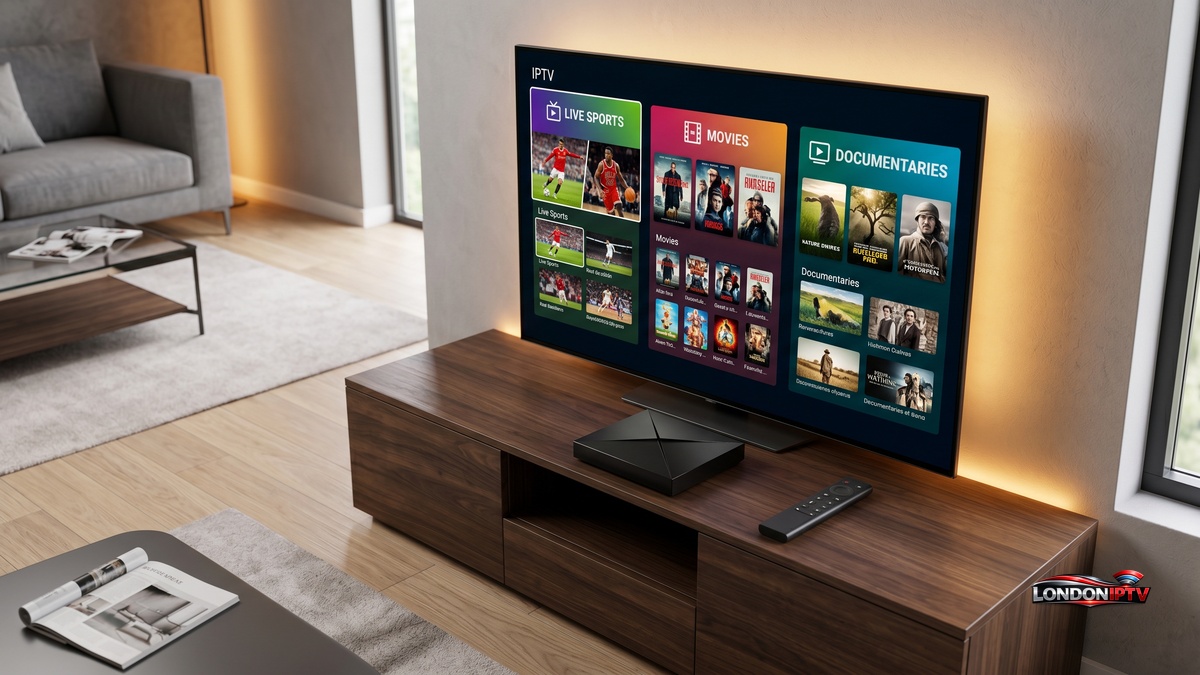
Table of Contents
If you want a simple way to stream live channels, catch up content and playlist based TV on a box connected to your television, IPTV on an Android TV box is one of the easiest routes to take. It works well for beginners, gives you more control over apps and settings, and lets you build a setup that feels close to regular cable, just far more flexible.
A good Android TV box gives you room to choose your player, adjust playback, and use a remote friendly interface instead of fighting with tiny mobile menus. Whether you use a budget box or a faster device like the NVIDIA Shield TV, the setup can be quick when you keep the basics clean and don’t overload the box with random apps.
Why IPTV on Android Works Better on a TV Setup
The main reason IPTV on Android feels so practical is that Android TV boxes support app installs, playlist input and playback controls all in one place. Most people begin with the Google Play Store, and common player choices for Android TV boxes include TiviMate, IPTV Smarters Pro and IBO Player.
Another big plus is hardware flexibility. You can use Wi-Fi, but a wired Ethernet connection is usually the better pick for stable streams, especially for live sports or HD channels. If your player has an acceleration or hardware decoding option, turn it on and test it, since that can smooth out playback on mid range boxes.
The setup also stays familiar. You install the player, add your playlist or portal details, refresh the guide, and start watching. That makes IPTV on Android a good fit for people who want less messing around and more actual viewing.
What You Need Before You Start
Before you jump in, get the basics ready so the process doesn’t turn into a separate troubleshooting session two minutes later. To run IPTV on an Android TV box smoothly, you need a working internet connection, an Android TV box with enough storage, and a player app that supports your provider’s format.
Use this short checklist first:
- A reliable Android TV box with updated firmware
- A stable internet line, with a wired Ethernet connection preferred over weak Wi-Fi
- A legal IPTV playlist, M3U link, or portal login from a licensed source
- Access to the Google Play Store, or permission to sideload if the app isn’t listed
- Enough free space so the player, guide data and cache don’t choke the box
If you compare Smarters Pro, TiviMate and IBO Player, the setup pattern stays mostly the same. The real difference is layout, advanced features, and how much control you want over channel groups, EPG, recordings and view options. TiviMate is often picked for advanced EPG and multi playlist use, IPTV Smarters Pro is commonly easier for new users, and IBO Player is built around simple TV remote navigation.
When people search for IPTV on an Android TV box, they usually want three things: easy setup, smooth playback and a clean channel guide. If that sounds like you, keep the first install basic and resist loading five players on day one.
IPTV on Android Setup: The Fast Start
The fastest way to get IPTV on Android running is to choose one player and finish one clean install before testing anything else. This is also the best way to set it up without creating conflicts between cached data, old playlists and duplicate media settings.
Follow these steps:
- Open the Google Play Store on your box and search for your preferred player. Guides for Android TV boxes commonly start with this method, though some apps may still need sideloading on certain devices.
- Install the app and launch it.
- Choose your login type, usually an M3U playlist, an Xtream style login, or a local file.
- Enter the details exactly as provided by your service.
- Let the app load channels, films, and the EPG if available.
- Go into settings and turn on acceleration if the option is there.
- Restart the app and test a few live channels before changing anything else.
If your goal is to set it up the right way, keep your first test small. Load one playlist, check the audio sync, and make sure the guide populates before you start customising logos, favourites or parental controls. That one habit will definitely save you time.
A lot of users try to set it up, skip the settings, then blame the app when buffering starts. In reality, the issue is often weak Wi-Fi, wrong playlist details, or a box that’s overheating from too many background apps.
Once you’ve got it working, create favourite groups for sports, films, kids and news. That tiny bit of sorting makes the whole setup feel cleaner and far more usable from the couch.
Player Comparison for Android TV Boxes
If you want a technical snapshot before choosing a player, this table keeps it simple. It focuses on common Android TV box needs rather than flashy extras.
| Player | Best fit | Input support | Technical notes |
|---|---|---|---|
| TiviMate | Power users and frequent live TV viewers | M3U and Xtream Codes API | Strong EPG, multiple playlists, hardware decoding, multi screen in Premium |
| IPTV Smarters Pro | Beginners who want an easy layout | M3U URL and Xtream Codes API | Multi screen support, simple navigation, external player support |
| IBO Player / IBO Pro | Users who want a remote friendly screen flow | M3U and Xtream Codes | Basic EPG, broad device support, easy activation flow |
For many homes, IPTV on Android works best when you match the player to the person using it. A tinkerer may prefer TiviMate, while someone who just wants to log in and watch may feel better with Smarters Pro or IBO Player.
How to Get Free IPTV on Android TV Box Without Making a Mess
A smart way to think about free IPTV on an Android TV box is to focus on legal free sources, not mystery links shared in random forums. Public streams, ad supported live TV apps, free news feeds and trial playlists from licensed platforms are the safer route.
If you’re after free IPTV for testing, use it to check player speed, channel switching and guide loading before you pay for anything. That gives you a cleaner idea of what your box can handle.
Here are safer ways to approach it:
- Try legal free live TV apps first.
- Use free demo playlists only from providers you can verify.
- Avoid links that ask for strange permissions or shady downloader apps.
- Test one source at a time so you know what’s causing problems.
- Remove dead playlists fast, since they slow down navigation and confuse the guide.
A lot of people search for free IPTV when they really mean “how do I test this without wasting money?” That’s fair, but keep it clean and stick to legal streams, since it’s not worth wrecking your box for a shortcut.
How to Install Free IPTV on Android TV Box the Safe Way
If your next step is installing free IPTV on an Android TV box, the process is nearly the same as any other playlist install. The difference is that you should verify the source, keep expectations realistic, and remember that free feeds often disappear without warning.
Use this safe method:
- Install a player from the Google Play Store.
- Add a legal free playlist or trial line.
- Refresh the channels and EPG.
- Test with a wired Ethernet connection if streams buffer.
- Delete the source if it throws constant errors.
The cleanest approach is to treat free IPTV like a test setup, not your forever setup. Free lines are useful for checking compatibility, but paid licensed options usually give you better uptime, better guide data, and fewer headaches.
People also look for free IPTV when they want a fast result for family members. In that case, choose one app, one playlist and one home screen shortcut, since simple wins every time.
If you follow that approach, it stops feeling technical. It becomes a quick routine: install, log in, test, sort channels, and watch.
Quick Fixes That Keep Playback Stable
When IPTV on Android starts buffering or freezing, the fix is often basic and boring, but it works:
- Reboot the box and the router.
- Switch from Wi-Fi to a wired Ethernet connection.
- Clear the app cache, but don’t wipe data unless you’ve saved your login.
- Turn acceleration on or off and compare the results.
- Reduce background apps that steal memory.
- Test the same playlist in a second player to isolate the problem.
That’s the part many people skip, but it matters. A neat setup, one trusted player and a stable connection will usually beat a fancy setup loaded with junk every single time.