IPTV on Google TV: The Ultimate Easy Setup Guide for Chromecast in 2026

Table of Contents
If you’ve been wondering how to get IPTV on Google TV or cast IPTV to TV using a Chromecast device, you’re about to find out exactly how no technical background required. Google TV OS makes the whole process surprisingly accessible, whether you’re installing a native IPTV app for Google TV directly from the Play Store or casting from mobile using the Google Home App. This guide covers every method, every app, and every fix you need.
Why IPTV on Google TV Is One of the Smartest Streaming Setups in 2026
IPTV on Google TV sits at a sweet spot that most other platforms don’t quite reach. Unlike Tizen or webOS, Google TV OS is a full Android based platform meaning you get access to the Google Play Store for native app installs AND the ability to sideload APKs for apps that aren’t listed there. You get the best of both worlds: the simplicity of a polished smart TV interface and the openness of Android.
The Chromecast with Google TV OS also supports Casting from Mobile, which means you can beam a live IPTV stream directly from your phone to your big screen using the Google Home App no app installation on the TV required at all. It’s one of the most flexible IPTV player Chromecast setups available anywhere right now.
What You Need Before You Setup IPTV on Google TV
Before you install your first IPTV app for Google TV, make sure these essentials are in order:
- A Chromecast with Google TV OS (4K or HD model), or any Smart TV running Google TV natively
- An active IPTV Subscription either an M3U Playlist URL or Xtream Codes login from your provider
- Your provider’s server URL, username, and password
- A stable internet connection 10 Mbps minimum for HD, 25 Mbps for 4K streams
- A Google account linked to your device for Play Store access
- Optional: the Google Home App installed on your phone for Casting from Mobile
One thing people constantly overlook when setting up IPTV on Google TV for the first time: make sure your Google TV OS firmware is updated before installing any IPTV app. Outdated firmware causes random app crashes and login failures that have nothing to do with the app itself update first, then install, and save yourself an hour of unnecessary troubleshooting.
Best IPTV App for Google TV: Full Comparison
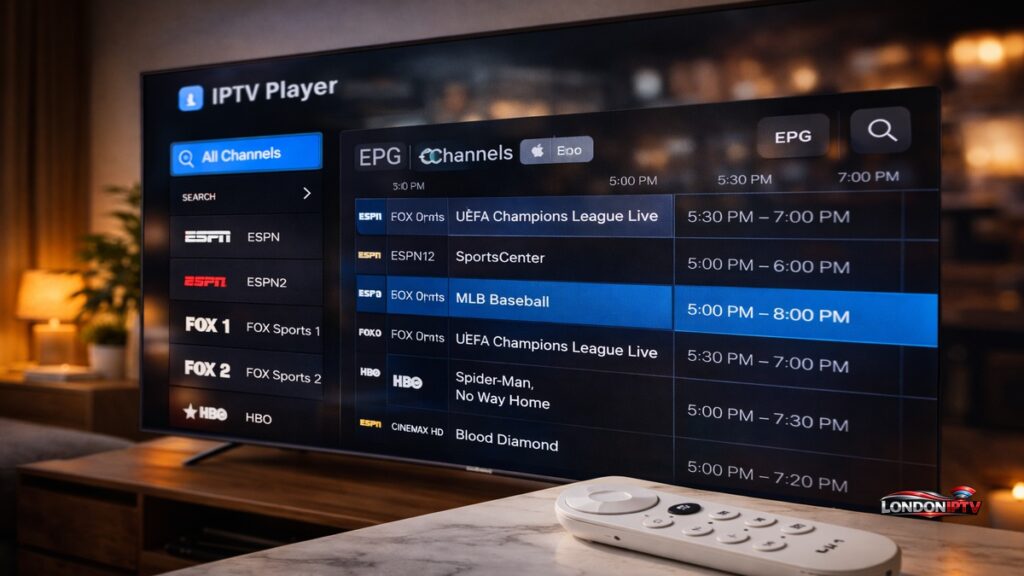
Picking the right IPTV app for Google TV determines everything about your daily streaming experience. Here’s how the top players compare:
| App | Free? | M3U Playlist | Xtream Codes | EPG Guide | Casting Support | TV Optimised UI | Best For |
|---|---|---|---|---|---|---|---|
| TiviMate | ✅ (limited) | ✅ | ✅ | ✅ | ✅ | ✅ Excellent | Power users |
| IPTV Smarters Pro | ✅ | ✅ | ✅ | ✅ | ✅ | ✅ Good | Beginners |
| GSE Smart IPTV | ✅ | ✅ | ✅ | ✅ | ✅ | ✅ Good | Multi playlist users |
| Perfect Player | ✅ | ✅ | ❌ | ✅ | ❌ | ✅ Good | Custom UI fans |
| IBO Player | ✅ | ✅ | ✅ | ✅ | ✅ | ✅ Decent | Simple setups |
| Kodi + PVR | ✅ | ✅ | ✅ | ✅ | ✅ | ⚠️ Limited | DIY / advanced |
TiviMate is the undisputed best IPTV player Chromecast and Google TV option for experienced users its TV native interface feels purpose built for remote navigation, and the premium version adds recording, multi screen, and catch up TV for around $5/year. IPTV Smarters Pro is the best starting point for anyone new to IPTV on Google TV Xtream Codes login works in under two minutes and the interface is clean on every screen size.
How to Install IPTV App for Google TV: Step by Step
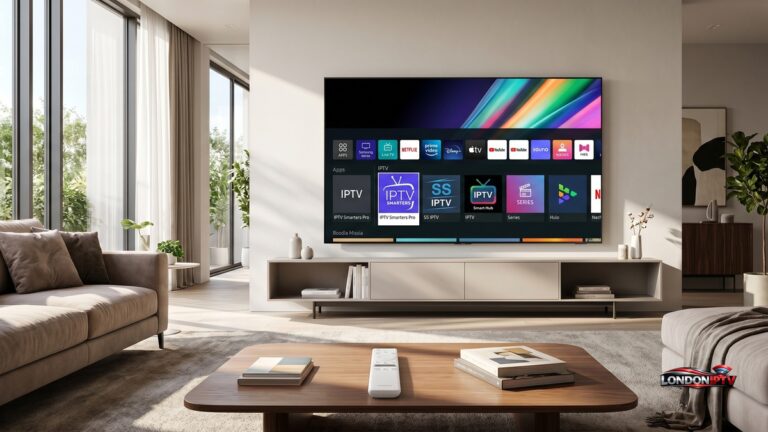
Here is the complete process to install your first IPTV app for Google TV directly from the Play Store:
- From the Google TV OS home screen, navigate to the Apps section
- Open the Google Play Store using the search or browse function
- Search for your chosen app TiviMate, IPTV Smarters Pro, or IBO Player
- Select the app and click Install it downloads and installs automatically
- Open the app from your Google TV home screen
- Select your login method M3U Playlist URL or Xtream Codes API
- Enter your IPTV Subscription server URL, username, and password
- Allow the app to load your full channel list and sync EPG data
- Navigate to Live TV, select a category, and start streaming
If your preferred app doesn’t appear in the Play Store search results, Sideloading APK is the solution more on that in the section below.
How to Setup IPTV on Google TV Using TiviMate
TiviMate is definitaly the most popular IPTV app for Google TV among daily users here’s exactly how to get it running:
- Open the Google Play Store on your Google TV OS device
- Search for TiviMate and install it the free version is fully functional for basic use
- Launch TiviMate and tap Add Playlist on the welcome screen
- Choose Xtream Codes API or M3U Playlist URL based on your IPTV Subscription type
- Enter your server URL, username, and password (for Xtream Codes) or paste your M3U URL
- Name the playlist and tap Add TiviMate loads all channels with EPG data automatically
- Navigate using your Chromecast remote the Google TV OS D pad controls work seamlessly with TiviMate’s grid interface
- Optional: upgrade to TiviMate Premium (~$5/year) for recording, multi screen PiP, and catch up TV
TiviMate’s EPG guide is the best of any IPTV player Chromecast app it displays a full two week scrollable programme grid that feels genuinely premium compared to every other option on the platform.
With Google TV ready to stream, the next step is picking a reliable service to go with it. Check out our IPTV Free Trial UK 2026 guide, where we list the top 10 services you can test on your Chromecast before committing — with no credit card traps or hidden fees.
How to Cast IPTV to TV Using Chromecast and Google Home App
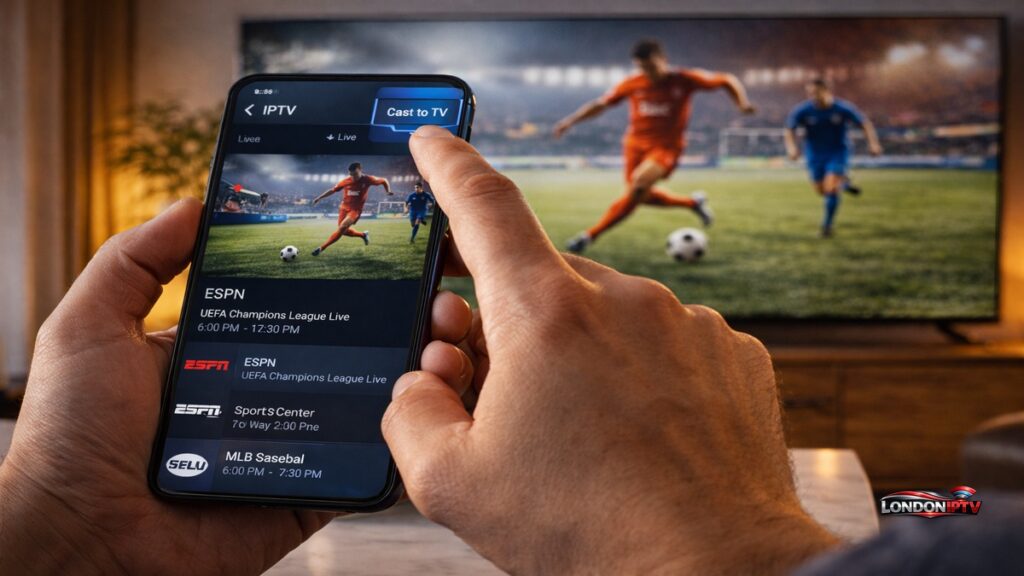
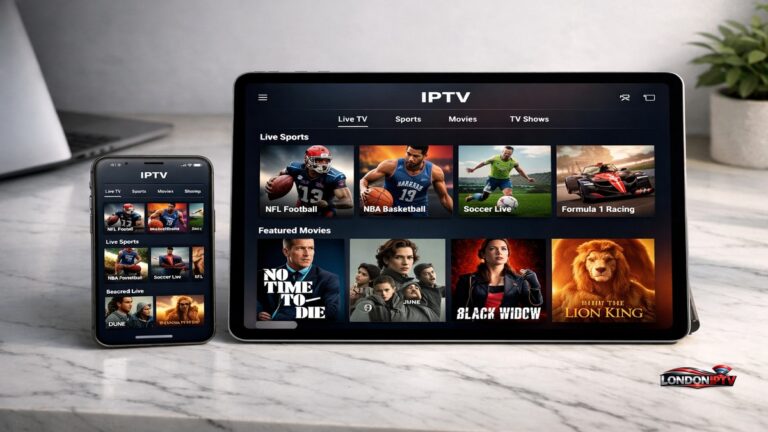
If you’d rather not install any app on your TV, cast IPTV to TV directly from your phone using the Google Home App and built in Chromecast support it’s the most underused method for getting IPTV on Google TV:
- Make sure your phone and Chromecast are on the same WiFi network
- Open your IPTV app on your phone IPTV Smarters Pro, GSE Smart IPTV, or TiviMate
- Start playing any live channel in the app
- Tap the Cast icon (the screen with WiFi waves) inside the player
- Select your Chromecast or Google TV OS Smart TV from the device list
- The stream mirrors instantly to your big screen full quality, no app install needed on the TV
The Google Home App also lets you cast IPTV to TV by screen mirroring your entire Android display open the Google Home App, select your Chromecast, tap Cast my screen, then open your IPTV app on your phone. Everything on your phone screen appears on the TV in real time.
Casting from Mobile is particularly useful for sports events where you want to start watching immediately without configuring anything your phone has the IPTV Subscription active, and the Chromecast just becomes your display.
How to Sideload IPTV App on Google TV
Sideloading APK files is the method you need when a specific IPTV player Chromecast app isn’t available in the Play Store for your region:
- On your Google TV OS device, go to Settings → System → About → tap Android TV OS Build seven times to enable Developer Mode
- Go to Settings → Apps → enable Unknown Sources or Install Unknown Apps
- Install the Downloader by AFTVNews app from the Play Store (it’s free and specifically built for Sideloading APK files on TV devices)
- Open Downloader, enter the direct APK URL for your chosen IPTV app TiviMate APK, IPTV Smarters APK, or IBO Player APK from their official websites
- Click Go Downloader downloads and prompts you to install immediately
- After installation, the app appears in your Google TV app list
Sideloading APK files on Google TV OS is completely safe when you use official APKs from developer websites the process is identical to Android phone sideloading and doesn’t void any warranties.
How to Cast IPTV to TV From iPhone Using AirPlay
iPhone users aren’t locked out of getting IPTV on Google TV either if your Smart TV supports AirPlay (most 2022+ models with Google TV do), the process is clean:
- Make sure your iPhone and Google TV OS Smart TV are on the same WiFi network
- Open your IPTV app on iPhone GSE Smart IPTV or IPTV Smarters Pro work best
- Start playing any live channel
- Tap the AirPlay icon inside the player
- Select your Smart TV from the AirPlay device list
- Your stream instantly appears on the TV at full quality
Its worth noting that this method requires your Smart TV to have AirPlay 2 enabled in its settings go to Settings → Apps → AirPlay and HomeKit and make sure it’s toggled on. Once that’s done, cast IPTV to TV from iPhone takes literally two taps.
Quick Troubleshooting for IPTV on Google TV
Running into problems? Here are the fastest fixes for the most common issues:
- App not showing in Play Store → Switch your Google account region to US or UK in account settings, then search again many IPTV apps are region restricted
- TiviMate black screen on streams → Go to TiviMate Settings → Player → change stream format from HLS to TS hardware decoding issues cause 90% of black screen reports
- Cast IPTV to TV lagging → Reduce stream quality to 720p in your phone IPTV app before casting Casting from Mobile compresses the stream through your router, which amplifies buffering on high bitrate sources
- Sideloaded APK not installing → Make sure Unknown Sources is enabled in Google TV OS Settings → Apps without it, every Sideloading APK attempt silently fails
- IPTV Smarters Pro crashing on launch → Clear app cache via Settings → Apps → Smarters → Storage → Clear Cache, then relaunch
- EPG not loading in TiviMate → Re enter your IPTV Subscription Xtream Codes URL and force a manual EPG refresh in TiviMate Settings → EPG
Performance Tips to Get the Most From IPTV on Google TV
Once your setup is live, these habits keep IPTV on Google TV running at its best every single day:
- Use Ethernet over WiFi the Chromecast 4K with Google TV OS has a USB C port a USB C to Ethernet adapter gives you a wired connection that eliminates buffering on 4K streams entirely
- Enable hardware decoding in every app both TiviMate and IPTV Smarters Pro have hardware acceleration toggles in their player settings keep these ON to reduce CPU load and prevent overheating
- Set EPG to auto refresh nightly TiviMate and GSE Smart IPTV both support scheduled EPG updates set the refresh time to 3–4 AM so your guide is always current without any manual input
- Restart weekly Google TV OS accumulates background processes over time a weekly power cycle keeps app launch times fast and prevents memory related crashes
- Keep APKs updated manually apps installed via Sideloading APK don’t auto update through the Play Store check developer websites every 60–90 days for the latest version
- Use Xtream Codes over M3U Playlist where possible Xtream Codes API loads 3–5x faster, syncs EPG automatically, and gives you full VOD and Series access that raw M3U Playlist links can’t match
IPTV on Google TV is one of the cleanest cord cutting setups you can put together right now native Play Store apps, built in Casting from Mobile via the Google Home App, APK sideloading flexibility, and a polished Google TV OS interface that makes the whole experience feel genuinely premium. Whether you chose TiviMate for power, IPTV Smarters Pro for simplicity, or pure Casting from Mobile for zero install convenience, you now have everything you need to cast IPTV to TV and stream live TV like a pro in 2026.