IPTV on Windows PC: The Ultimate Fast Setup Guide for Buffer Free Streaming in 2026

Table of Contents
If you’ve been searching for the best app for iptv on windows or just want to know how to get IPTV on Windows PC running without a headache, this is the only guide you need. Windows 11 / 10 gives you more IPTV player options than any other platform and once you pick the right one, setup iptv on windows takes less than five minutes flat.
Why IPTV on Windows PC Is the Most Flexible Streaming Setup Available
Running IPTV on Windows PC gives you total freedom that no smart TV or streaming stick can match. You can run multiple IPTV players side by side, record live channels directly to your hard drive, set custom buffer sizes, and switch between M3U playlists or Xtream Codes logins in seconds.
Windows 11 / 10 also handles hardware accelerated video decoding natively, meaning apps like PotPlayer and VLC Media Player offload HEVC and H.264 decoding to your GPU keeping CPU usage low even during 4K streams. If you’ve ever tried how to play iptv on windows on an older underpowered device and hit buffering walls, enabling hardware decoding in your player is usually the fix.
What You Need Before You Setup IPTV on Windows
Before jumping into the setup iptv on windows process, make sure you have all of these in place:
- A PC or laptop running Windows 11 / 10 (minimum 4GB RAM 8GB recommended for 4K streams)
- An active IPTV subscription M3U URL or Xtream Codes login
- Stable internet 10 Mbps minimum for HD, 25 Mbps for 4K
- Your provider’s server URL, username, and password
- A downloaded M3U Playlist File saved locally if your player requires offline loading
- Updated graphics drivers via Windows Update for hardware decoding support
One thing people regularly overlook when starting with IPTV on Windows PC for the first time: check that your Windows Firewall isn’t blocking your IPTV app. Both VLC Media Player and IPTV Smarters Desktop get silently blocked by Windows Defender Firewall, causing black screens with no error message. Add them to the firewall exceptions list before anything else.
Best App for IPTV on Windows: Full Comparison
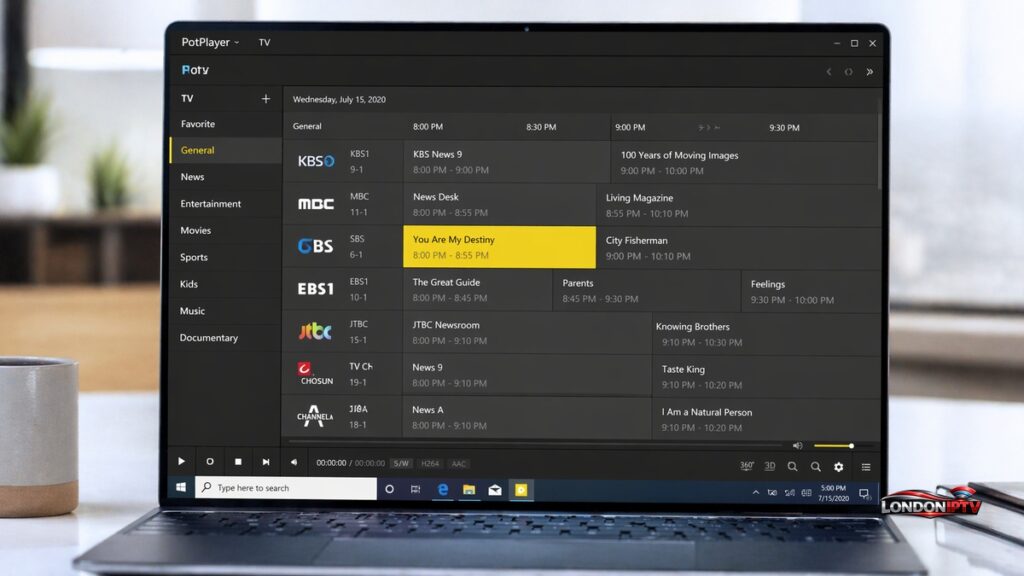
Picking the right player is the most important decision in the whole process. Here’s how the top options compare on Windows 11 / 10:
| App | Free? | M3U Support | Xtream Codes | EPG | Hardware Decoding | Best For |
|---|---|---|---|---|---|---|
| VLC Media Player | ✅ | ✅ | ❌ | ❌ | ✅ | Quick M3U playback |
| MyIPTV Player | ✅ | ✅ | ✅ | ✅ | ✅ | Windows Store users |
| PotPlayer | ✅ | ✅ | ❌ | ❌ | ✅ Excellent | Power users / 4K |
| IPTV Smarters Desktop | ✅ | ✅ | ✅ | ✅ | ✅ | Beginners |
| Kodi + PVR Plugin | ✅ | ✅ | ✅ | ✅ | ✅ | DIY / advanced setup |
| TiviMate (BlueStacks) | ✅ | ✅ | ✅ | ✅ | ✅ | Android app lovers |
IPTV Smarters Desktop is the best starting point for anyone new to IPTV on Windows PC clean UI, Xtream Codes login built right in, and zero configuration needed beyond pasting your credentials. PotPlayer is the pick for serious users who want the best possible picture quality with the lowest CPU overhead it’s the best iptv player on windows for hardware accelerated 4K and HEVC streams. MyIPTV Player sits in a neat middle ground, available directly from the Microsoft Store and fully compatible with both M3U and Xtream Codes on Windows 11 / 10.
How to Setup IPTV on Windows PC Using IPTV Smarters Desktop
IPTV Smarters Desktop is definitaly the easiest way to get IPTV on Windows PC running fast here’s the exact process:
- Go to the official IPTV Smarters website and download the Windows 11 / 10 installer
- Run the installer and accept the default installation path
- Open IPTV Smarters Desktop after installation
- On the welcome screen, select Xtream Codes API or M3U Playlist URL
- If using Xtream Codes: enter your server URL, username, and password, then click Add User
- If using M3U: paste your M3U Playlist File URL directly into the field and confirm
- Wait for the app to load your full channel list and sync EPG data
- Navigate to Live TV, select a category, and start streaming
The Xtream Codes route gives you better EPG integration programme schedules, catch up TV, and VOD access all load automatically when you connect via Xtream Codes rather than a raw M3U Playlist File.
How to Play IPTV on Windows Using VLC Media Player
VLC Media Player is the most well known answer to how to play iptv on windows it’s free, open source, and works on every version of Windows 11 / 10:
- Download and install VLC Media Player from videolan.org
- Open VLC and click Media → Open Network Stream (or press Ctrl + N)
- Paste your M3U Playlist File URL directly into the network URL field
- Click Play VLC loads your stream immediately
- To browse all channels, open the Playlist panel via View → Playlist (Ctrl + L)
- For local M3U Playlist File playback: drag and drop the .m3u file directly onto VLC
VLC Media Player doesn’t support Xtream Codes or EPG natively, so its best used for quick M3U based access rather than a full TV guide setup. Its best feature for IPTV on Windows PC is raw compatibility if a stream URL works anywhere, it works in VLC.
How to Play IPTV on Windows Using PotPlayer
PotPlayer is the best iptv player on windows for pure video performance, and it handles high bitrate 4K streams better than any other free option on Windows 11 / 10:
- Download PotPlayer from the official Daum site and install it
- Save your IPTV provider’s M3U Playlist File URL
- Open PotPlayer and click the browser/playlist tab
- Open your .m3u file or paste the M3U URL
- Browse all channels and VOD content through the playlist view
- Right click the player → Preferences → Video → enable hardware decoding for HEVC and H.264
PotPlayer’s hardware acceleration implementation on Windows 11 / 10 is one of the best in the business it uses DXVA2 and D3D11 decoding paths that keep CPU usage under 5% even during 4K HEVC streams.
How to Setup IPTV on Windows With MyIPTV Player
MyIPTV Player is the cleanest best app for iptv on windows option available directly from the Microsoft Store no third party downloads needed:
- Open the Microsoft Store on your Windows 11 / 10 PC
- Search for MyIPTV Player and click Get to install
- Launch the app and navigate to Playlists → Add New Playlist
- Enter a name for your playlist, then paste your M3U URL or Xtream Codes server URL
- Hit Update and let MyIPTV Player load all channels
- Go to EPG Settings and add your XMLTV URL for a full TV guide view
MyIPTV Player is particularly good for users who want the best iptv player on windows without installing anything outside the Microsoft ecosystem it’s sandboxed, gets automatic updates, and runs clean on both Windows 11 / 10 without any compatibility issues.
Quick Troubleshooting for IPTV on Windows PC
Running into problems? Here are the fastest fixes:
- Black screen on streams → Add your IPTV app to Windows Firewall exceptions via Settings → Privacy & Security → Windows Security → Firewall
- VLC Media Player not loading M3U → Check the URL for broken characters try opening the M3U Playlist File locally instead of via URL
- PotPlayer audio/video out of sync → Enable audio normalization and reset A/V sync with the Shift + G / H keyboard shortcuts
- IPTV Smarters Desktop crashing on launch → Reinstall the latest version and clear app data from AppData\Roaming
- EPG not loading in MyIPTV Player → Re enter your XMLTV EPG URL and force a manual refresh from the EPG settings menu
- 4K buffering constantly → Drop stream quality to 1080p or switch from WiFi to a wired Ethernet connection
Your Windows PC is now ready to handle live TV and VOD with ease. To make sure you’re pairing it with a service worth your time, take a look at our Best IPTV UK 2026 guide, which ranks 10 providers on the metrics that matter most for PC streaming stability, speed, and channel depth.
Performance Tips to Maximize IPTV on Windows PC
Once your setup iptv on windows is live and working, these tweaks deliver a noticeably better everyday experience:
- Wired Ethernet always beats WiFi plug directly into your router a stable wired connection eliminates 90% of mid stream buffering on Windows 11 / 10
- Enable hardware decoding in every player you use PotPlayer, VLC Media Player, and IPTV Smarters Desktop all support GPU accelerated decoding, keeping performance smooth on even older hardware
- Set a manual buffer in VLC Media Player, go to Preferences → Input/Codecs and increase the network caching value to 2000–3000ms for live sports
- Use Xtream Codes over M3U where possible it loads faster, syncs EPG automatically, and gives you catchup TV access that raw M3U Playlist Files don’t support
- Update graphics drivers regularly Windows Update often skips GPU driver updates check your GPU manufacturer’s site directly for the latest DXVA2/D3D11 drivers
- Close background apps during 4K streams Chrome, OneDrive, and Windows Update running in the background can eat enough RAM on lower spec machines to cause stuttering
IPTV on Windows PC is genuinely one of the most powerful streaming setups you can build flexible, customizable, and free to run once you have a subscription. Whether you chose IPTV Smarters Desktop for it’s ease of use, VLC Media Player for raw compatibility, PotPlayer for 4K performance, or MyIPTV Player for Microsoft Store convenience, you now have everything you need to setup iptv on windows and watch live TV like a pro.