IPTV on Google TV: The Ultimate Easy Setup Guide for Chromecast in 2026

Table of Contents
If you’ve ever wondered how to get IPTV on Google TV, or how to cast IPTV to your telly through a Chromecast, you’re in the right place. You don’t need any technical know how for this. Google TV OS makes the whole thing far easier than people expect, whether you fancy installing a proper IPTV app straight from the Play Store or you’d rather cast from your phone using the Google Home App. Everything you need is below: the methods, the apps, and the fixes.
Why IPTV on Google TV Is One of the Smartest Streaming Setups in 2026
IPTV on Google TV lands in a spot that most rival platforms never quite reach. Where Tizen and webOS keep you boxed in, Google TV OS is built on Android, so you get the Google Play Store for native installs and the freedom to sideload APKs for anything that isn’t listed. That’s genuinely the best of both worlds, a tidy smart TV interface with the openness of Android sitting underneath it.
Chromecast with Google TV OS also handles casting from mobile, so you can fire a stream off your phone and onto the big screen with the Google Home App. Nothing needs installing on the telly itself. As far as Chromecast setups go, there isn’t much that’s more flexible.
What You Need Before You Set Up IPTV on Google TV
Before you install your first app, get these basics sorted:
- A Chromecast with Google TV OS (the 4K or HD model), or any smart TV that runs Google TV natively
- An active subscription, either an M3U playlist URL or an Xtream Codes login
- Your provider’s server URL, username and password
- A steady internet connection, 10 Mbps as a minimum for HD and 25 Mbps for 4K
- A Google account linked to the device so you can reach the Play Store
- Optional: the Google Home App on your phone if you want to cast from mobile
Here’s the thing people nearly always miss on a first setup. Update your firmware before you touch any IPTV app. Out of date firmware throws up random crashes and login failures that have absolutely nothing to do with the app, and you can waste a good hour chasing a problem that a quick update would’ve solved.
Best IPTV App for Google TV: Full Comparison
The app you settle on shapes your whole day to day experience, so it’s worth a proper look. Here’s how the usual suspects stack up:
| App | Free? | M3U | Xtream Codes | EPG Guide | Casting | TV-Optimised UI | Best For |
|---|---|---|---|---|---|---|---|
| TiviMate | Limited | Yes | Yes | Excellent | Yes | Yes | Power users |
| IPTV Smarters Pro | Yes | Yes | Yes | Good | Yes | Yes | Beginners |
| GSE Smart IPTV | Yes | Yes | Yes | Good | Yes | Decent | Multi-playlist users |
| Perfect Player | Yes | Yes | Yes | Good | Limited | Yes | Custom UI fans |
| IBO Player | Limited | Yes | Yes | Decent | Limited | Yes | Simple setups |
| Kodi + PVR | Yes | Yes | Yes | Limited | Yes | Limited | DIY / advanced |
TiviMate tends to be the one seasoned users keep coming back to. The interface feels like it was made for a remote, and the premium tier throws in recording, multi screen and catch up TV for only a few quid a year. If you’re new to all this, IPTV Smarters Pro is the gentler way in. The Xtream Codes login takes under two minutes and it stays clean no matter what size screen you’re on.
How to Install an IPTV App for Google TV: Step by Step
This is the full run through for installing your first app straight from the Play Store:
- From the Google TV OS home screen, head into the Apps section
- Open the Google Play Store with search or browse
- Look up your app of choice, say TiviMate, IPTV Smarters Pro or IBO Player
- Select it and hit Install, and it’ll download and set itself up on its own
- Open the app from your home screen
- Pick your login method, either M3U Playlist URL or Xtream Codes API
- Pop in your provider’s server URL, username and password
- Let it pull through your channel list and sync the EPG data
- Jump into Live TV, choose a category and start watching
If your app of choice doesn’t turn up in the Play Store search for your region, sideloading sorts it. There’s more on that further down.
How to Set Up IPTV on Google TV Using TiviMate
TiviMate is one of the most used apps going, so here’s exactly how to get it up and running:
- Open the Google Play Store on your Google TV OS device
- Search for TiviMate and install it. The free version does the job nicely for basic use
- Launch it and tap Add Playlist on the welcome screen
- Go for Xtream Codes API or M3U Playlist URL depending on what your subscription uses
- Enter your server URL, username and password for Xtream Codes, or paste your M3U link
- Give the playlist a name and tap Add. TiviMate brings in every channel along with the EPG data on its own
- Get around with your Chromecast remote. The D pad plays nicely with TiviMate’s grid layout
- Optional: move up to TiviMate Premium for recording, multi screen picture in picture and catch up TV
The EPG guide in TiviMate is about as good as it gets. You get a full two week programme grid you can scroll through, and it honestly feels a cut above most of what else is out there.
How to Cast IPTV to TV Using Chromecast and the Google Home App
If you can’t be bothered installing anything on the telly, you can cast straight off your phone with the Google Home App and built in Chromecast support. It’s easily the most overlooked way of getting IPTV onto the big screen:
- Check that your phone and Chromecast are on the same Wi-Fi network
- Open your IPTV app on the phone, something like IPTV Smarters Pro, GSE Smart IPTV or TiviMate
- Start playing any channel
- Tap the Cast icon (the little screen with the Wi-Fi waves) in the player
- Choose your Chromecast or Google TV device from the list
- The stream jumps over to the big screen at full quality, with nothing to install on the TV
The Google Home App will also let you cast by mirroring your whole Android display. Open the app, pick your Chromecast, tap Cast my screen, then open your IPTV app. Whatever’s on your phone shows up on the telly as it happens.
Casting from mobile comes into its own when you just want to get watching without faffing about with settings. Your phone holds the subscription and the Chromecast simply turns into your screen.
How to Sideload an IPTV App on Google TV
Sideloading APK files is what you’ll want when a particular app isn’t in the Play Store for your region:
- On your Google TV OS device, go to Settings, then System, then About, and tap Android TV OS Build seven times to switch on Developer Mode
- Head to Settings, then Apps, and turn on Unknown Sources or Install Unknown Apps
- Install the Downloader by AFTVNews app from the Play Store. It’s free and made specifically for sideloading onto TV devices
- Open Downloader and type in the direct APK link for your app, taken from its official developer site
- Hit Go, and Downloader grabs the file and asks you to install it
- Once it’s done, the app shows up in your Google TV app list
Sideloading is perfectly safe as long as you stick to official APKs from the developers themselves. It works just like sideloading on an Android phone and won’t void any warranties. Steer clear of random third party APK mirrors though, since that’s where dodgy files tend to come from.
How to Cast IPTV to TV From an iPhone Using AirPlay
iPhone owners aren’t shut out of any of this. If your smart TV supports AirPlay, and most Google TV sets from 2022 onwards do, it’s a clean process:
- Make sure your iPhone and Google TV are on the same Wi-Fi network
- Open your IPTV app on the iPhone. GSE Smart IPTV and IPTV Smarters Pro both work well
- Start playing a channel
- Tap the AirPlay icon in the player
- Pick your smart TV from the AirPlay list
- Your stream pops up on the telly at full quality
Just bear in mind you’ll need AirPlay 2 switched on first. Go to Settings, then Apps, then AirPlay and HomeKit, and make sure it’s toggled on. After that, casting from an iPhone is a two tap job.
Quick Troubleshooting for IPTV on Google TV
Hit a snag? Here are the quickest fixes for the problems that crop up most:
- App not showing in the Play Store: A fair few apps are region locked, so check that your Google account region matches where the app’s available, then search again
- TiviMate stuck on a black screen: Go to Settings, then Player, and switch the stream format from HLS to TS. Hardware decoding is behind most black screen complaints
- Casting keeps lagging: Knock the quality down to 720p in your phone app before you cast. Mobile casting squeezes the stream through your router, which makes buffering worse on high bitrate sources
- Sideloaded APK won’t install: Double check Unknown Sources is switched on in Settings, then Apps. Without it, every install quietly fails
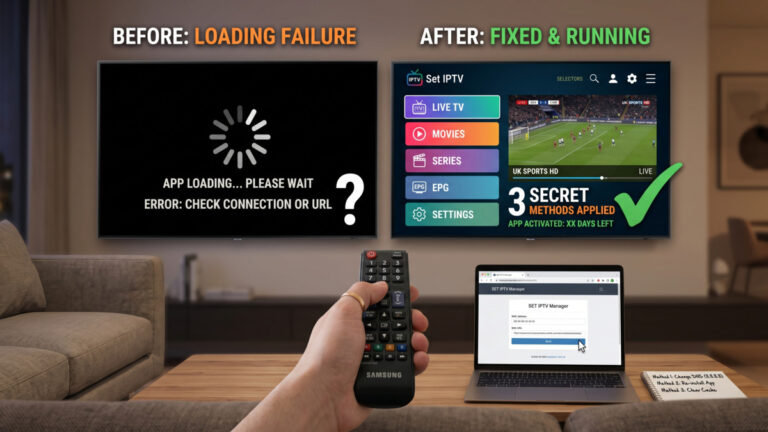
- IPTV Smarters Pro crashing on launch: Clear the cache under Settings, then Apps, then Smarters, then Storage, then Clear Cache, and open it again
- EPG not loading in TiviMate: Re enter your Xtream Codes URL and force a manual EPG refresh in Settings, then EPG
Performance Tips to Get the Most From IPTV on Google TV
Once everything’s up and running, these habits keep it ticking over nicely:
- Go wired over Wi-Fi where you can. The Chromecast 4K has a USB C port, so a USB C to Ethernet adapter gives you a wired link that wipes out buffering on 4K streams
- Turn on hardware decoding in every app. TiviMate and IPTV Smarters Pro both have a hardware acceleration toggle, and leaving it on eases the load on the CPU and stops the box overheating
- Set the EPG to refresh overnight, around 3 or 4 in the morning, so your guide’s always current without you lifting a finger
- Give it a reboot once a week. Google TV OS piles up background processes over time, and a weekly power cycle keeps things snappy and heads off the odd memory related crash
- Update sideloaded APKs by hand. They don’t refresh through the Play Store, so have a look at the developer sites every couple of months
- Use Xtream Codes rather than M3U when you’ve got the option. It loads quicker, syncs the EPG on its own, and opens up full VOD and series access that a plain M3U link just can’t manage
IPTV on Google TV is one of the neatest cord cutting setups you can pull together at the minute. You’ve got native Play Store apps, casting baked in through the Google Home App, the freedom to sideload, and an interface that feels properly premium to use. Whether you go with TiviMate for the power, IPTV Smarters Pro for the simplicity, or just cast from your phone for a no install life, you’ve now got everything you need to watch live telly like a pro in 2026.